1. Navigate to the Order Doc Preparation service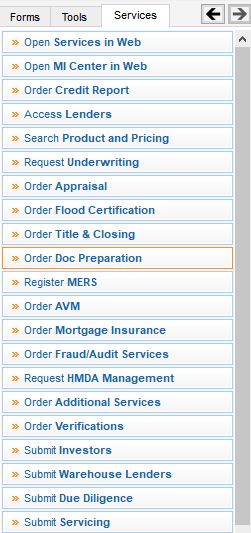
2. Select Blend as the partner and click Submit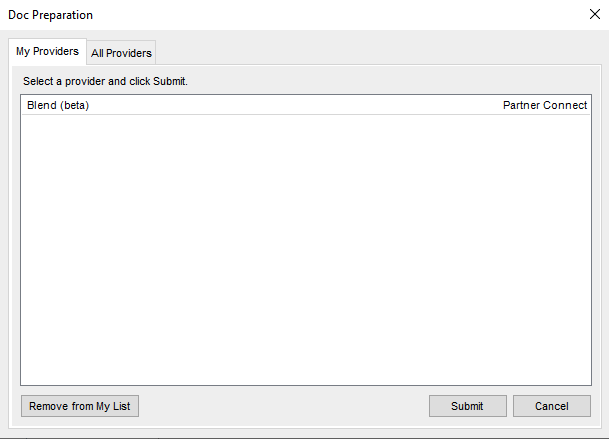
3. Click View Details
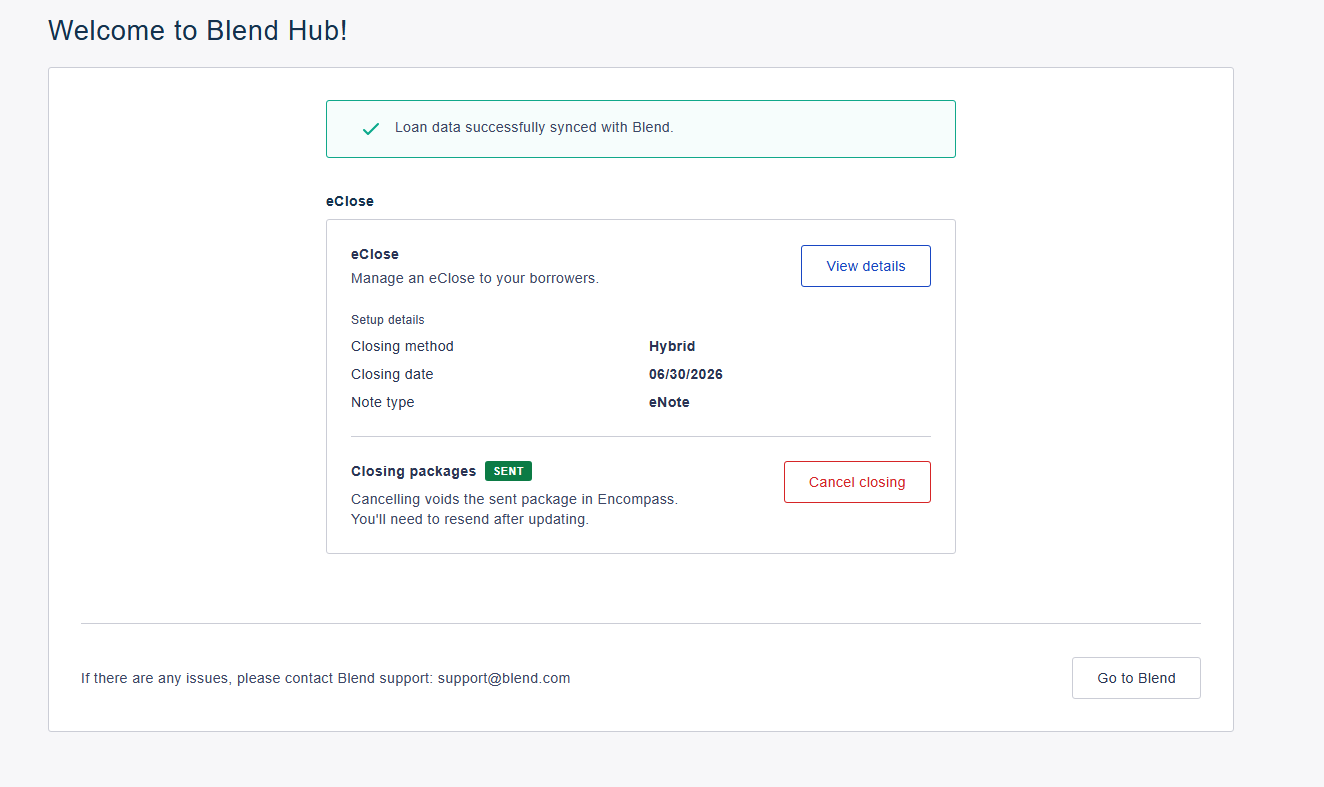
a. If applicable, cancel the existing closing package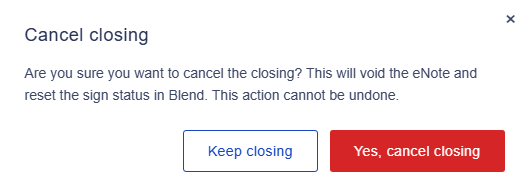
4. Configure your closing information:
• Closing Type (Traditional, Hybrid, RON)
• eNote/Paper Note
• Closing Date
• eSign Window (Hybrid/RON closings)
• Additional Settlement Agents/Title Agent (in addition to the Settlement Agent entered into the File Contacts of Encompass)
• Special Instructions for the Settlement Agent
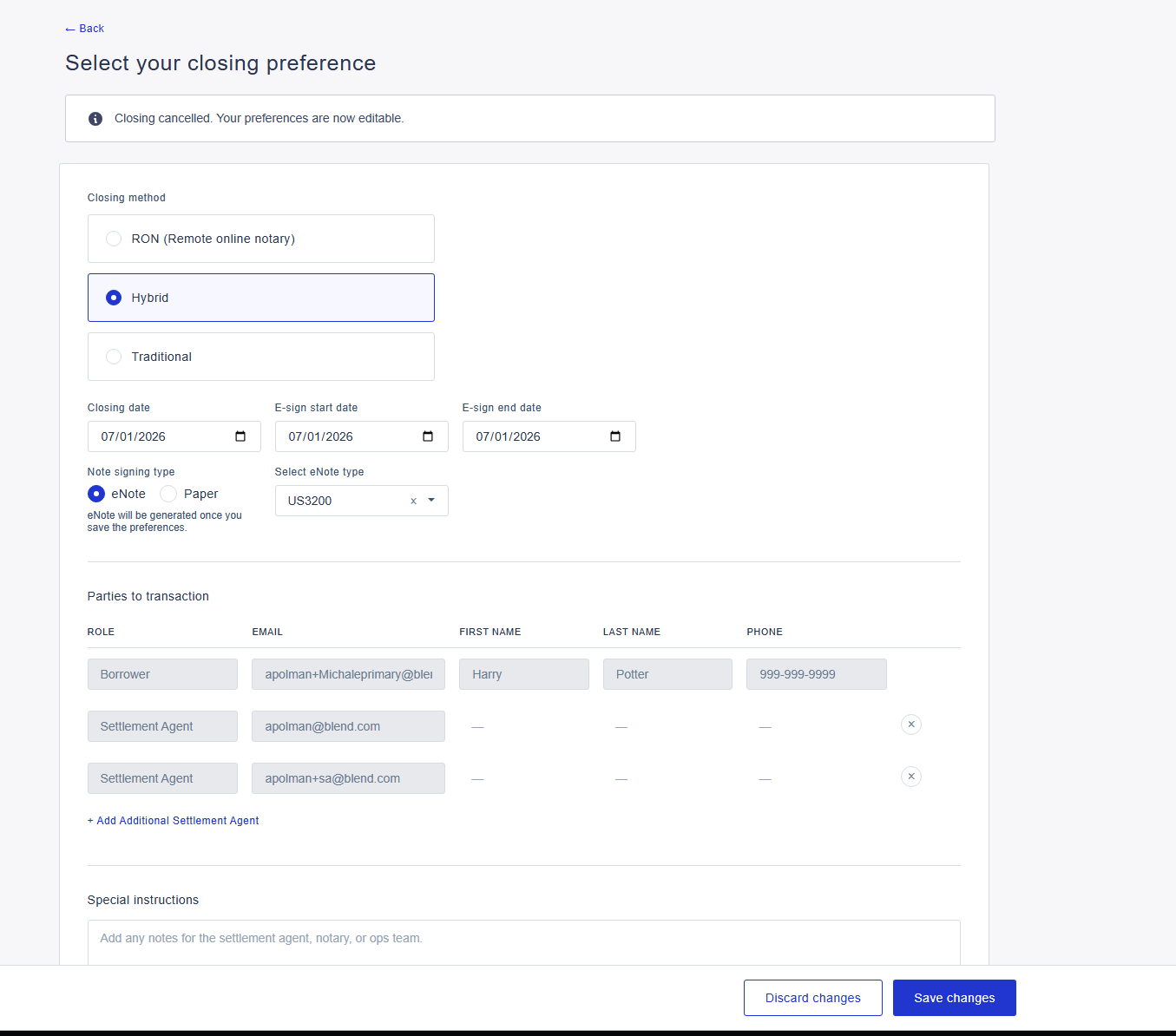
5. Click Save changes
If eNote was selected, one will be generated automatically
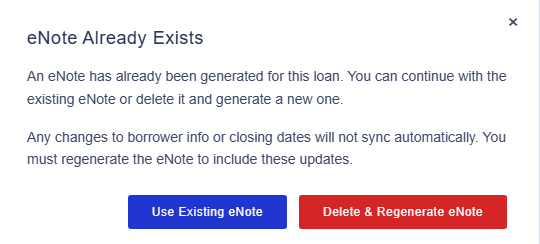
If a previous eNote existed, you will be prompted to:
- Generate a new one (required if closing/borrower information has changed) or
- Use the previous copy (if closing date/information as well as borrower information remains the same)
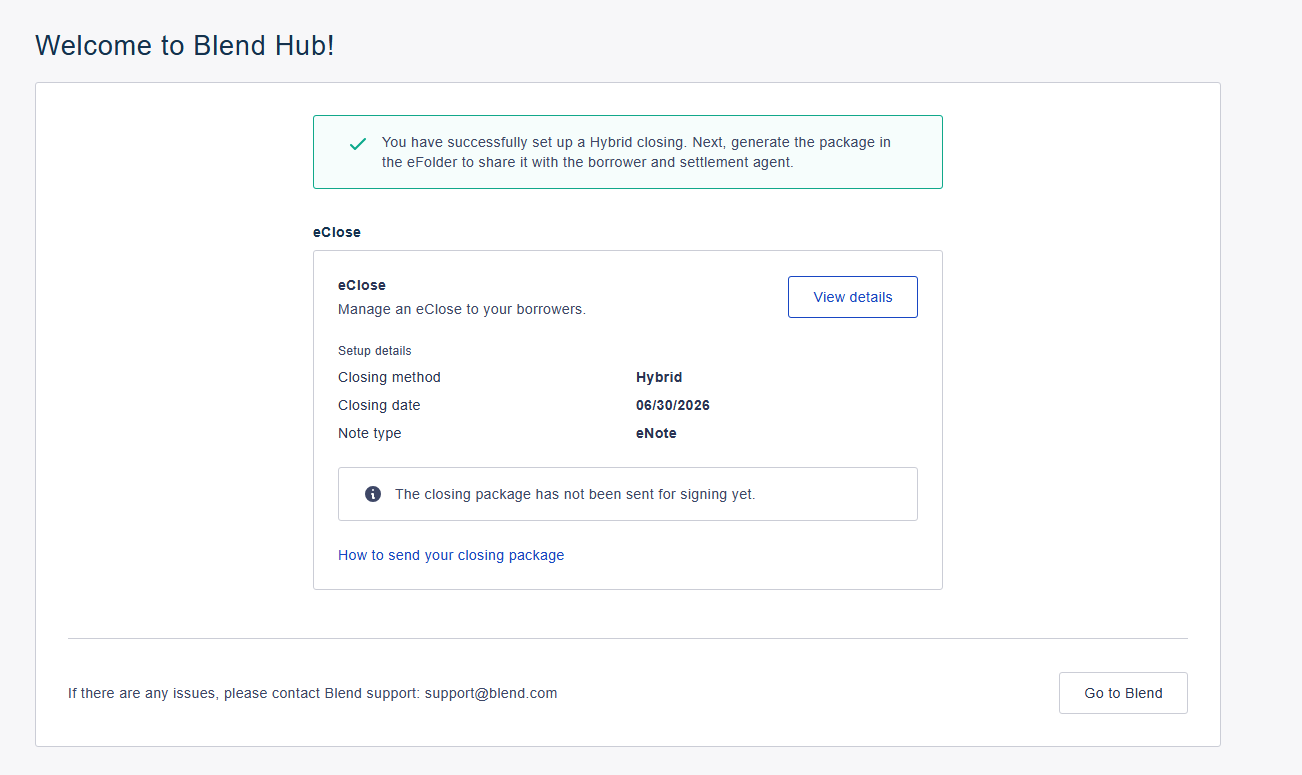
6. You will be redirected back to the Overview page and a confirmation will display at the top of the page
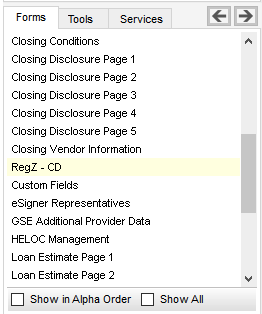
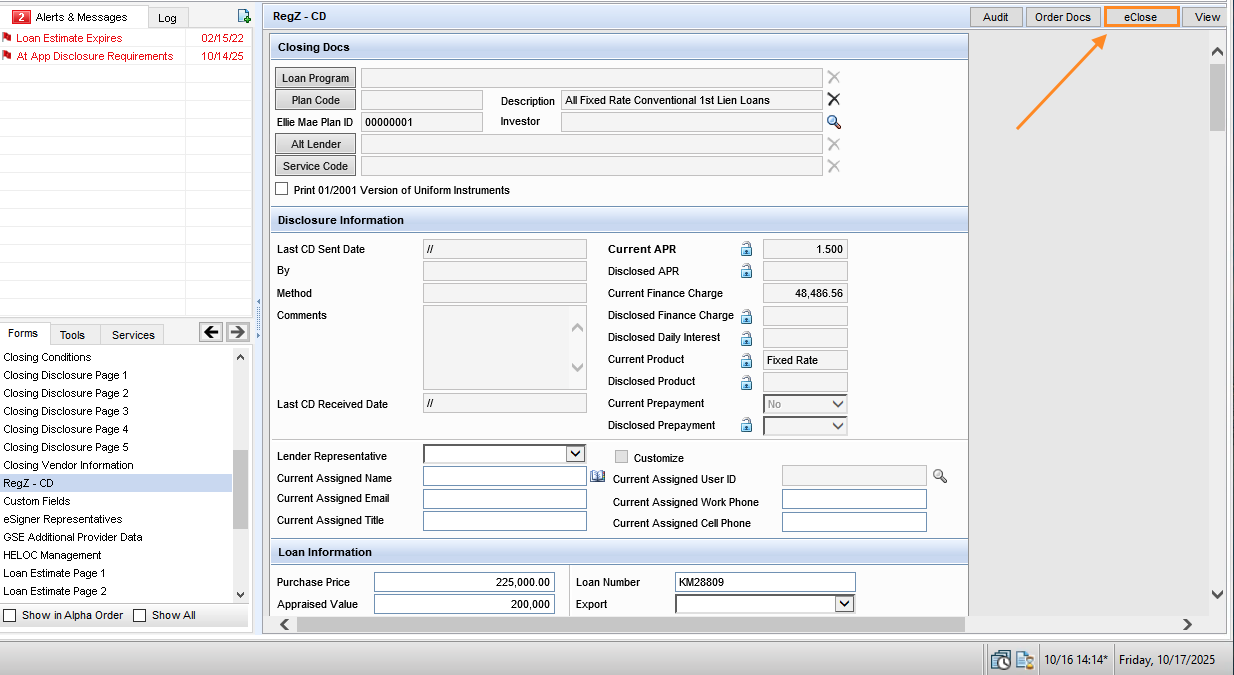
7. Navigate to the RegZ - CD form in Encompass
8. Select eClose in the top right
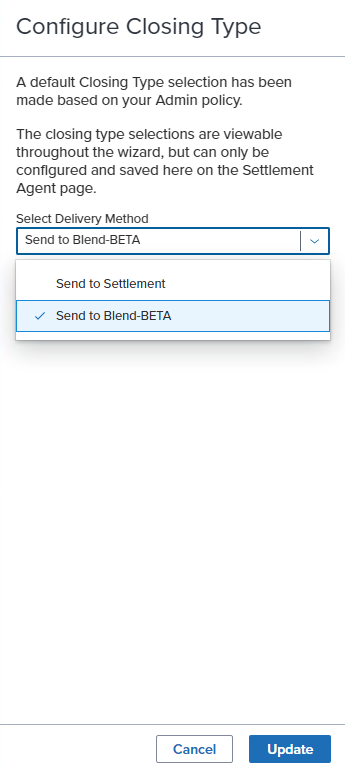
9. A new screen will pop up. Click on Configure Closing Type and choose Blend as the designation and Update
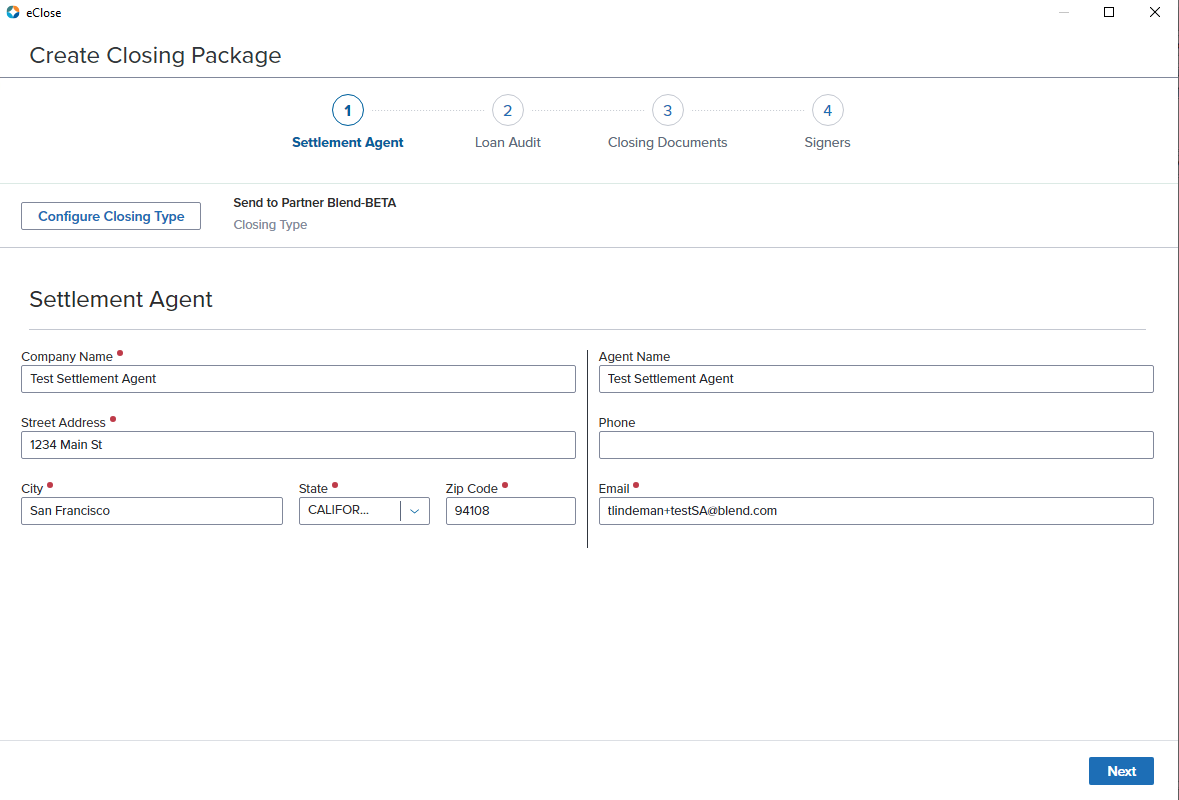
10. Enter the Settlement Agent information and hit Next
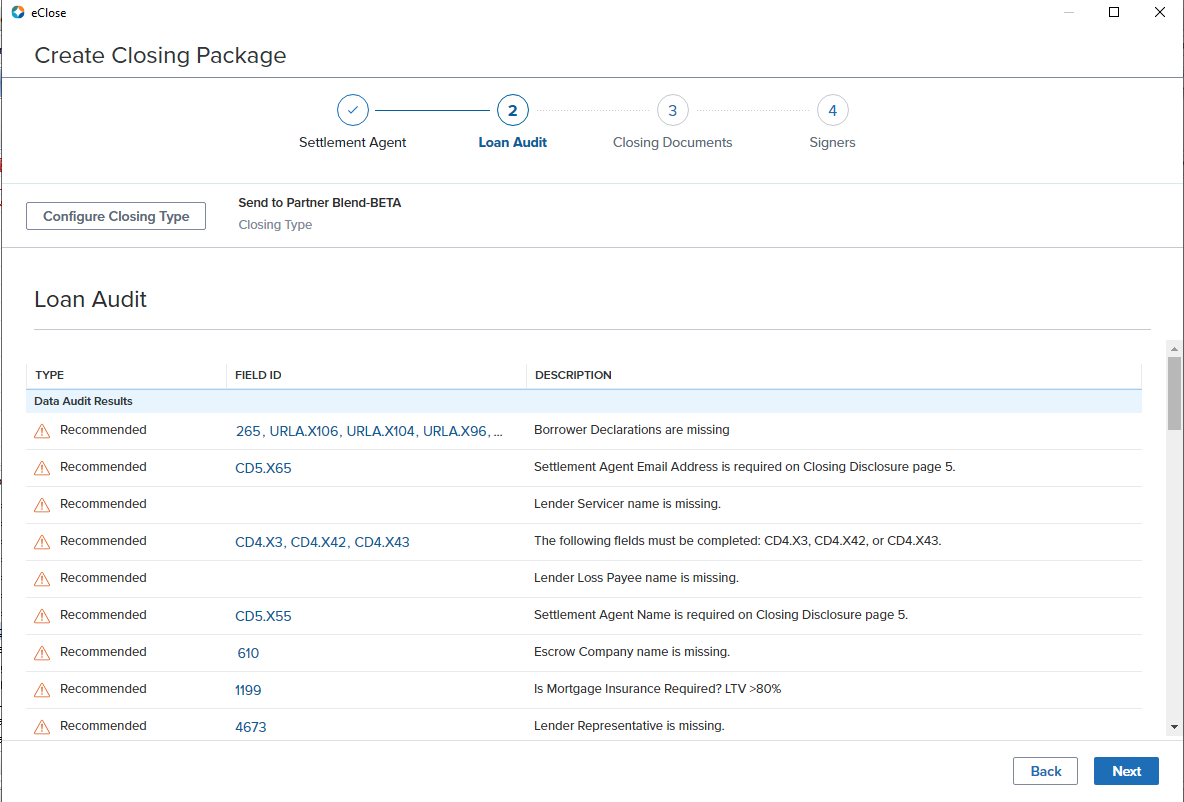
11. A Loan Audit will be performed. Once complete you can make any necessary corrections and hit Next
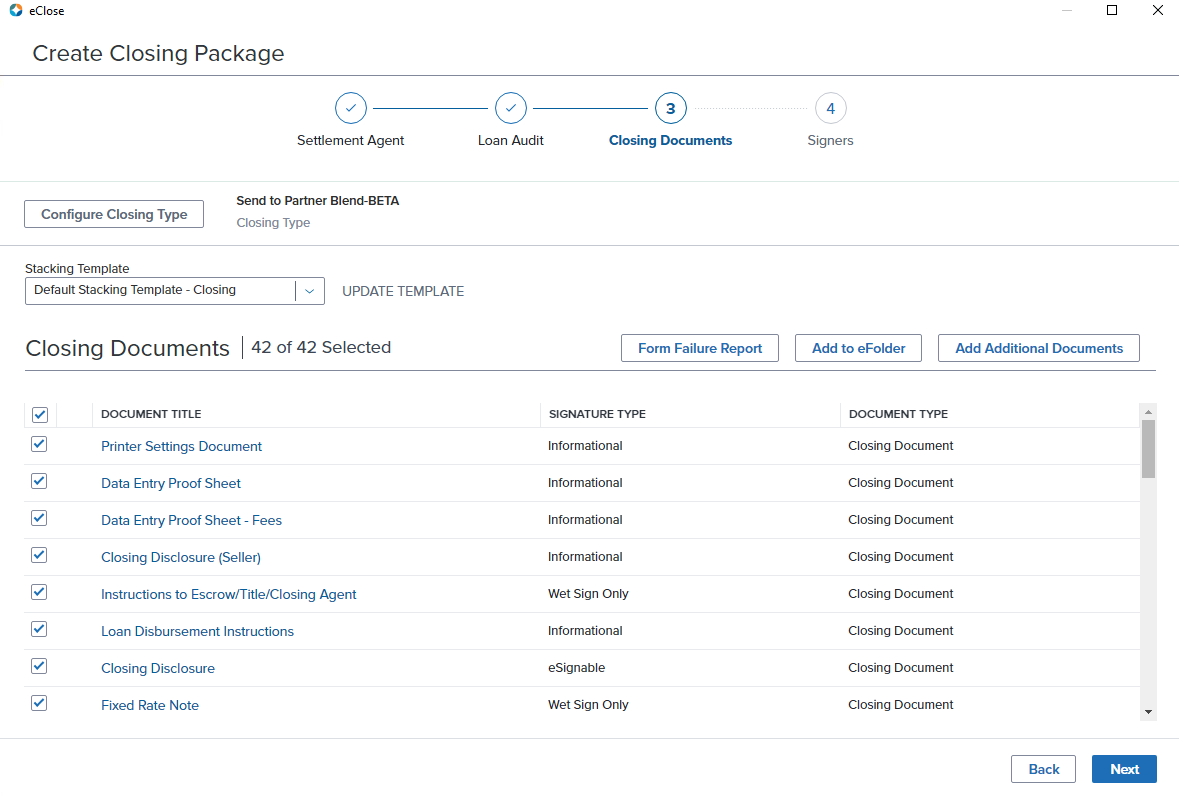
12. The closing documents will generated. Once complete you can view the list of documents as well as the stacking template that is being used. From this screen you can add documents to the eFolder, add additional closing documents that are not included in the Stacking Template, as well as see form failure reports. On this screen, you should also double-check that the closing will be sent to Blend (above the Stacking Template).
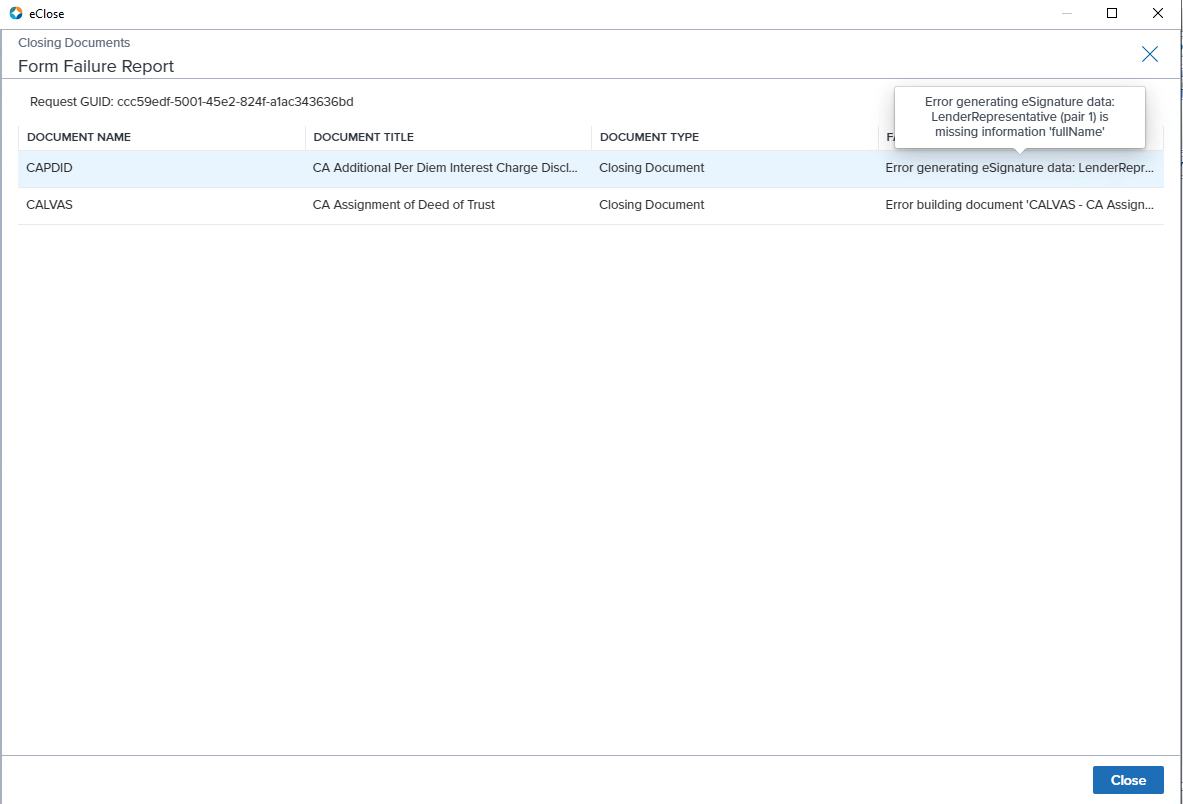
Note: If any failures occur, you can find the reason by hovering over the information in the FAILURE REASON column
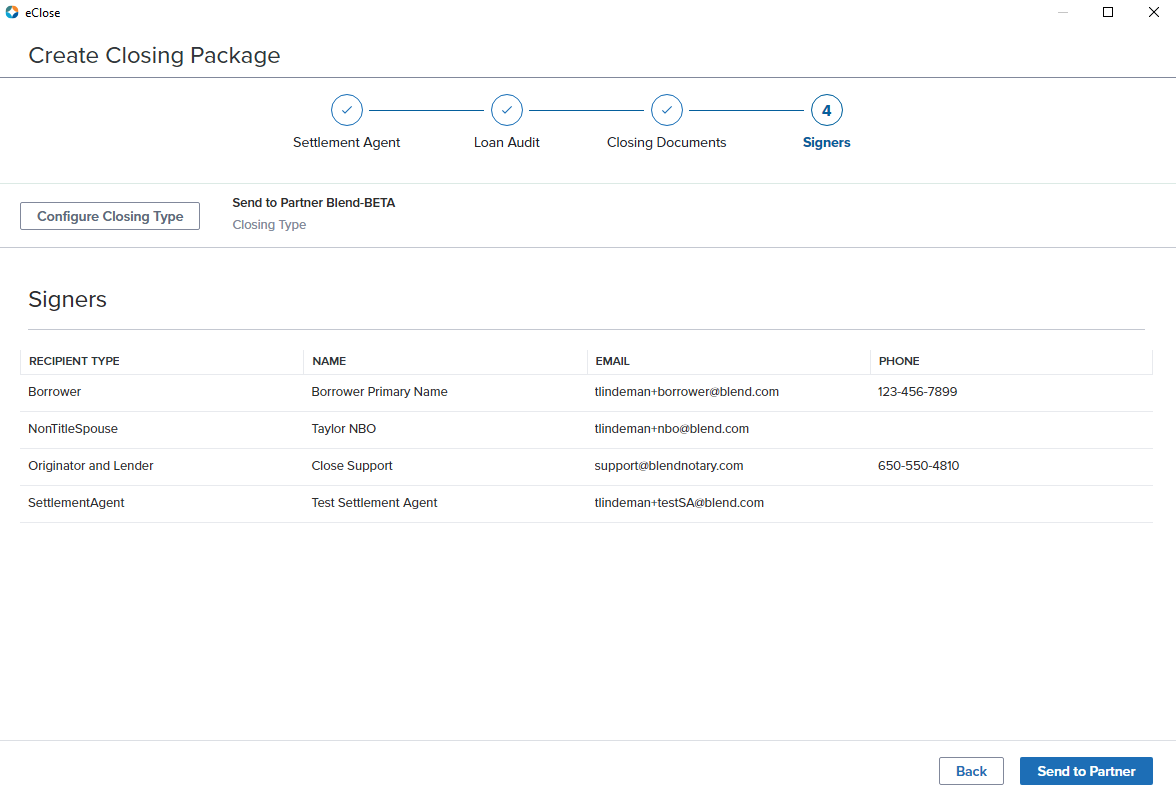
13. Hit Next to view the list of signers and parties to the transaction. Click Send to Partner once you are ready to submit the closing package to Blend
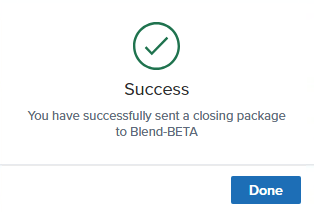
14. A loading screen will appear while the documents are being submitted. Once complete, you will see a Success screen
Questions? Please contact support@blendclose.com for assistance!
Was this article helpful?
That’s Great!
Thank you for your feedback
Sorry! We couldn't be helpful
Thank you for your feedback
Feedback sent
We appreciate your effort and will try to fix the article