This guide walks you through setting up eClose and creating a Closing Disclosure (CD) through the Encompass EPC UI, with screenshots for each step.
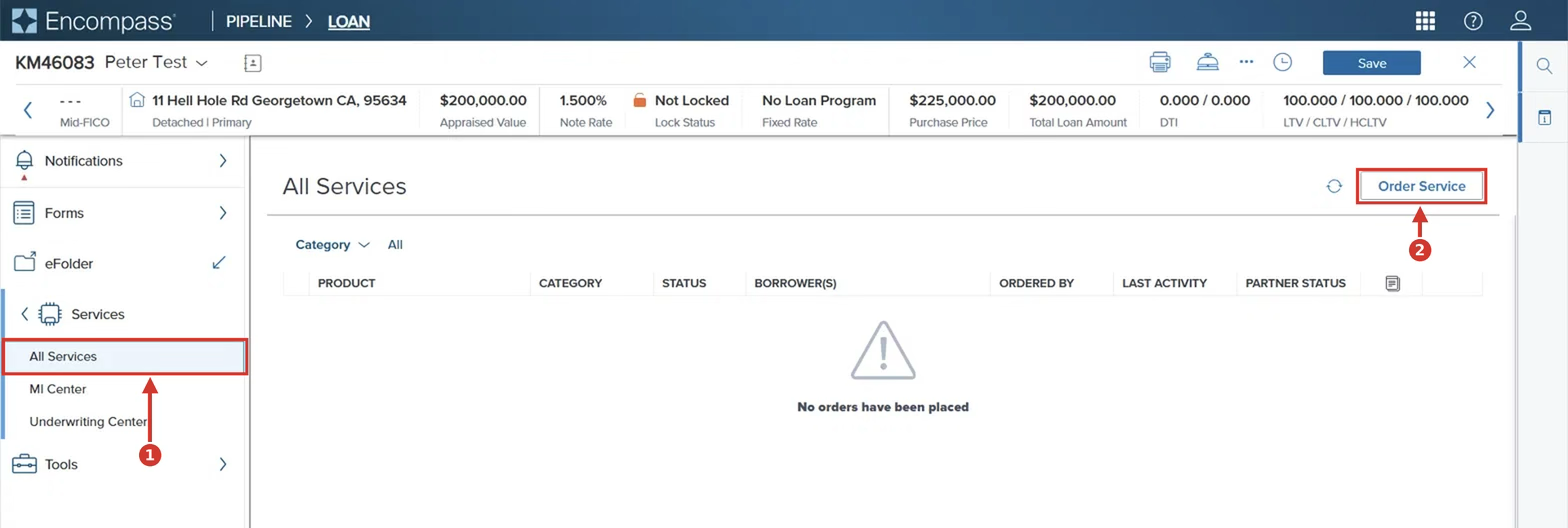
Step 1: Open the loan in Encompass and go to All Services.
Step 2: Click Order Service at the top right of the page.
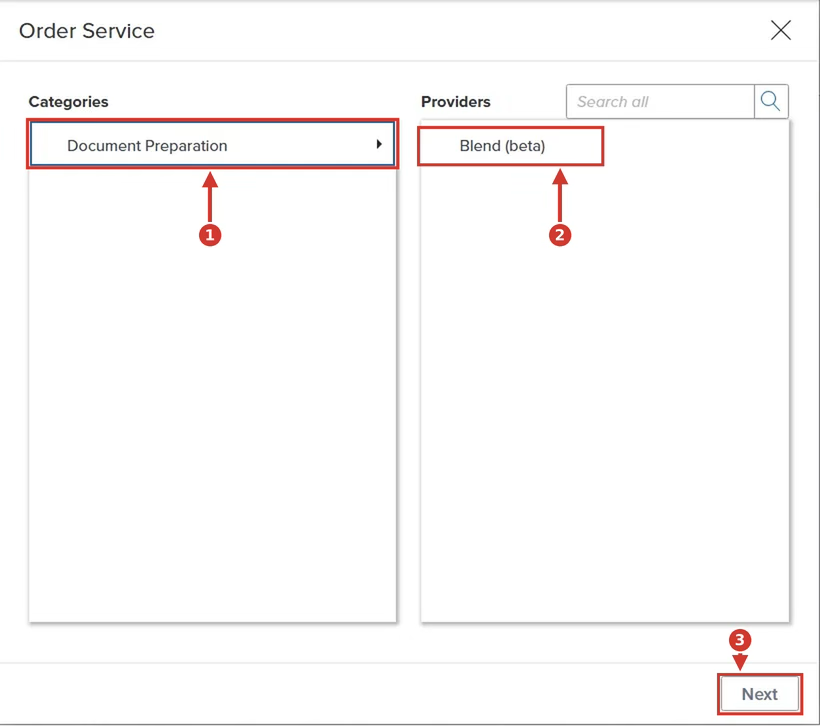
Step 3: In the Order Service window, select Document Preparation under Categories, choose Blend under Providers, and click Next.
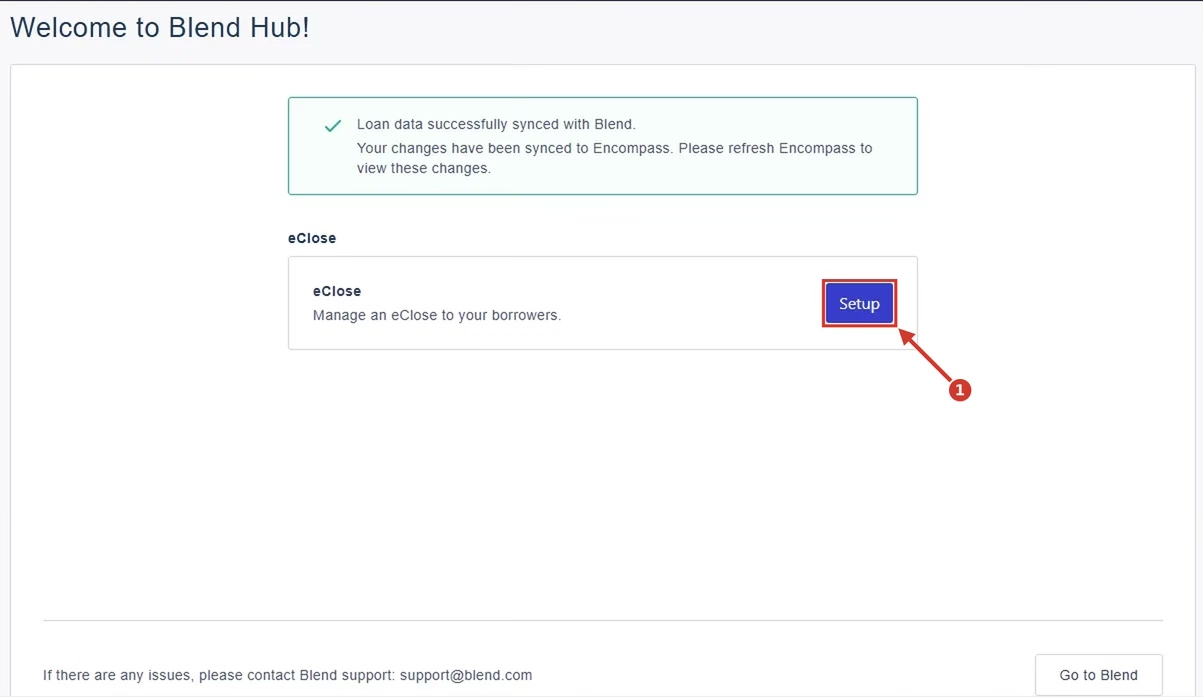
Step 4: On the Welcome to Blend Hub screen, click Setup next to eClose to start the eClose setup. A green banner confirms “Loan data successfully synced with Blend” before you continue.
Step 5: The Closing preferences screen appears. Select Closing disclosure under Package type, verify or update the Closing date, review the synced borrower and settlement agent details under Parties to transaction, and click Next.
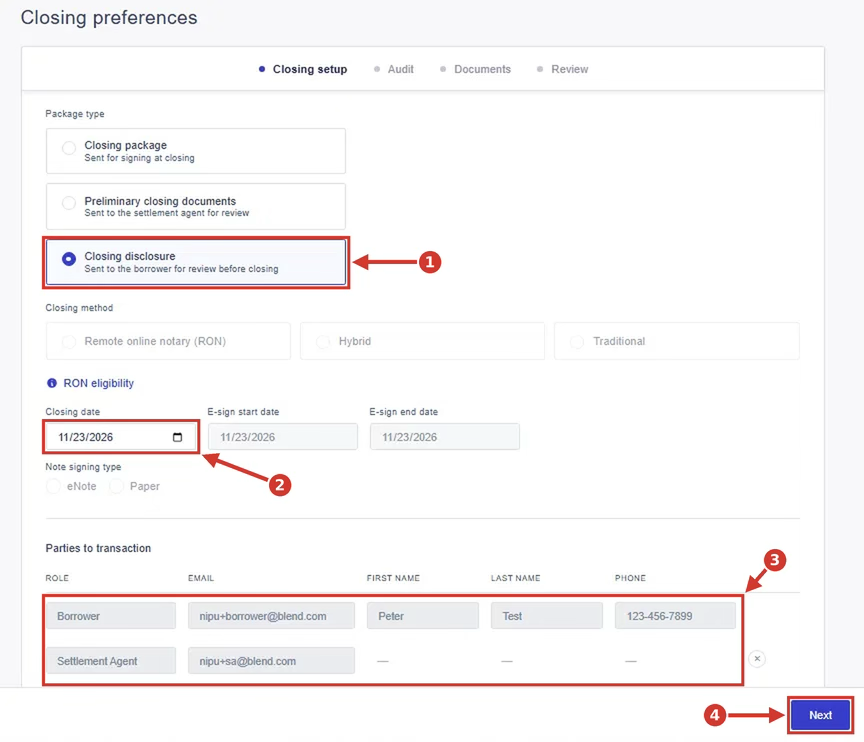 (Note: For the Closing disclosure package type, Closing method (RON, Hybrid, Traditional), the e-sign dates and Note signing type are greyed out and do not apply.)
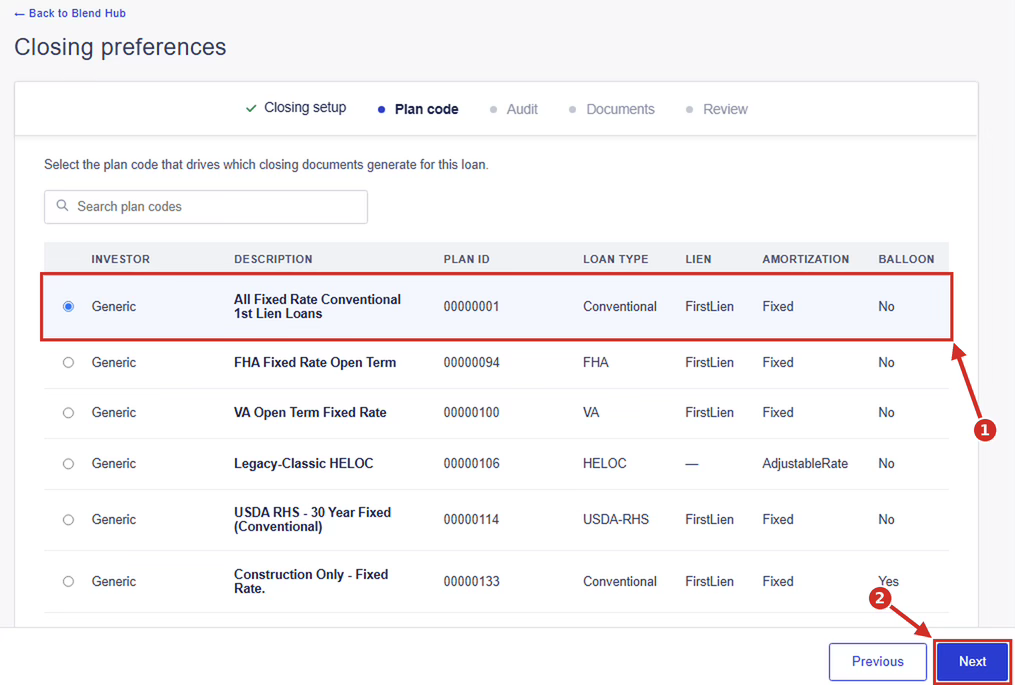
Step 6: You are redirected to the Plan code step of the Closing preferences screen. Confirm the plan code, and change it if necessary. Then click Next. (Note: This step may not appear if the plan code has already been inputted. It will only appear if the plan code has not yet been inputted.)
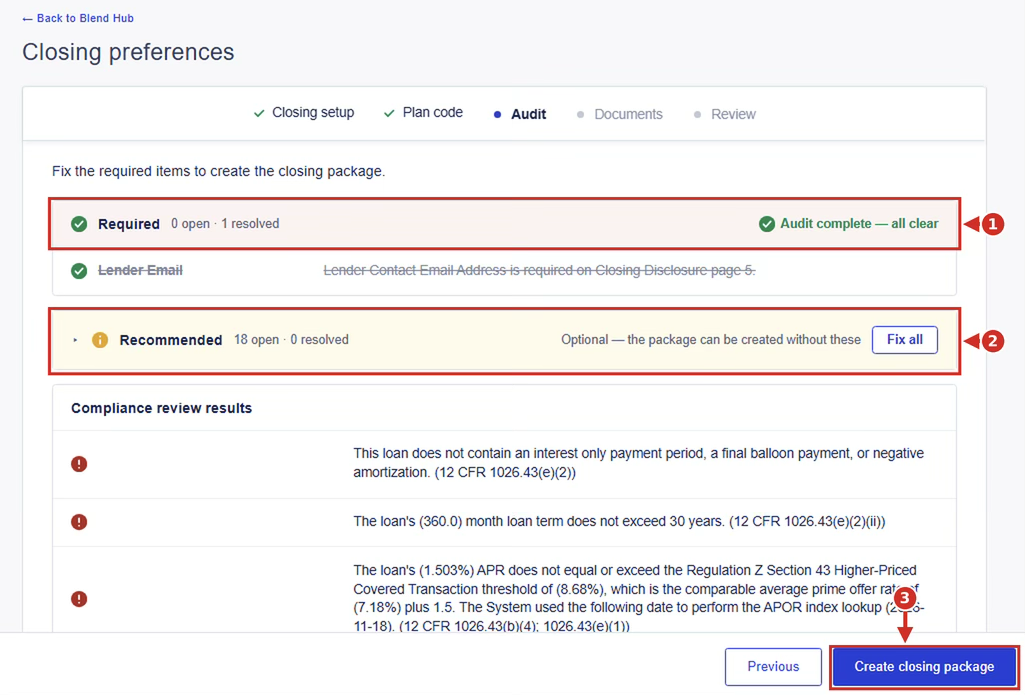
Step 7: On the Audit step, resolve all required issues, then click Create closing package. Recommended items are optional, and the package can be created without them.
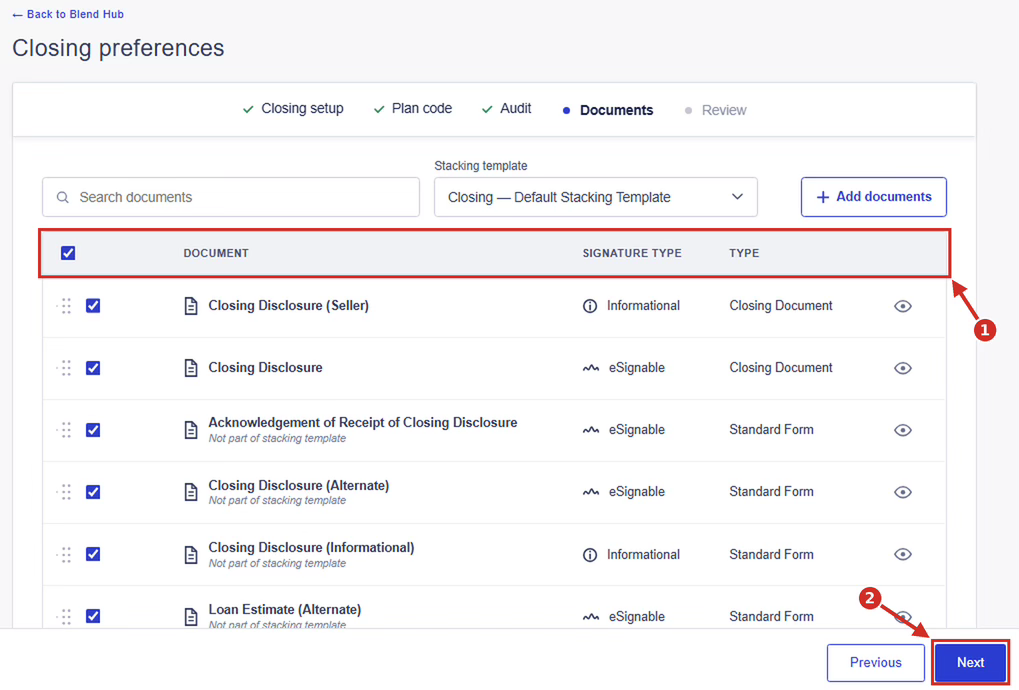
Step 8: On the Documents step, verify the generated documents. Use Add documents or Search documents to add or find documents. Select or deselect them using the checkboxes and click the eye icon to preview. Then click Next.
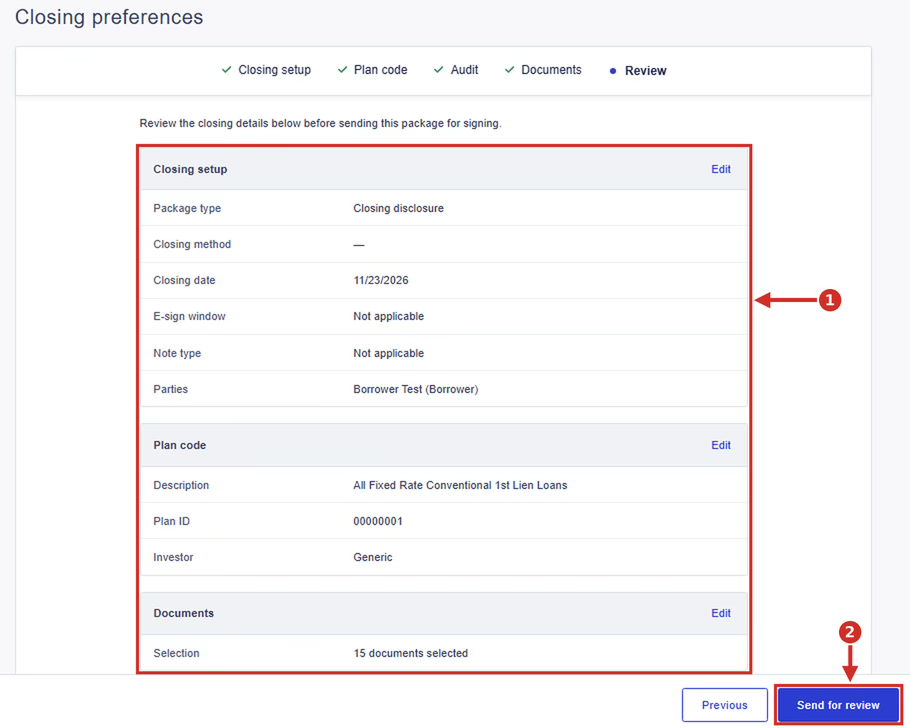
Step 9: Review the Closing setup, Plan code, and Documents sections—clicking Edit on any section if you need to go back and make changes—and then click Send for review to send the Closing Disclosure.
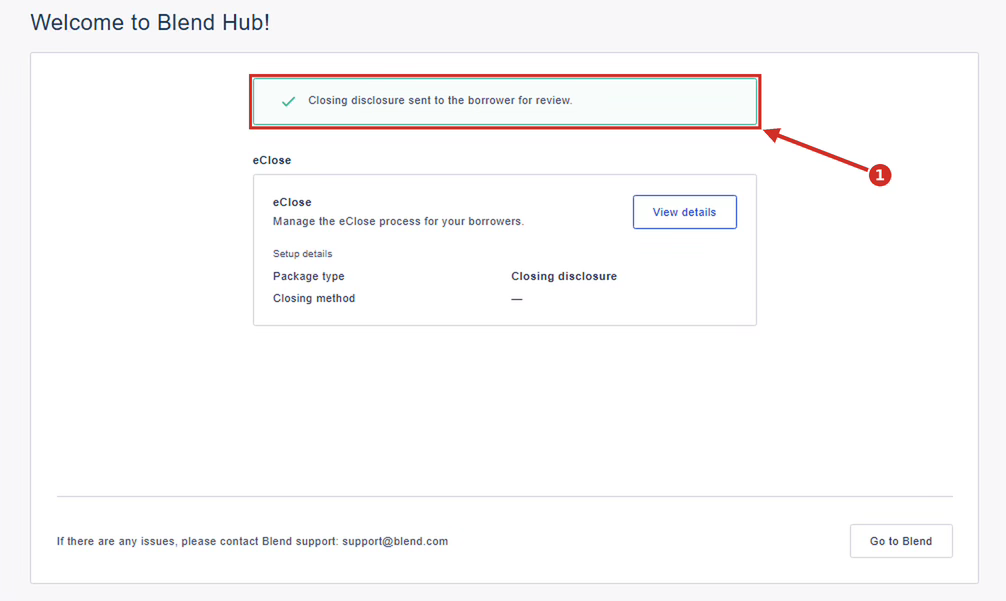
Step 10: You'll be redirected to the Blend Hub page, where you'll see the message "Closing Disclosure sent to the borrower for review."
Need help?
If anything does not look right, contact Blend support at support@blendclose.com.
Was this article helpful?
That’s Great!
Thank you for your feedback
Sorry! We couldn't be helpful
Thank you for your feedback
Feedback sent
We appreciate your effort and will try to fix the article