
Reopen, update, and resend a closing package from the EPC UI in Encompass.
When to redraw a package
Redraw the package when something changes after it was created. Common reasons:
The closing date changed
Borrower information changed
The eSign window changed
The closing type changed
The settlement agent or title details changed
The documents must be regenerated after data updates
You need to decide whether to create a new eNote or reuse the previous one
Before you begin
Confirm the loan is already set up for EPC/eClose
Use this flow when you can complete the redraw from the EPC UI
Redraw the package in EPC UI
Part 1: Reopen the closing
Open the loan in Encompass and go to All Services.
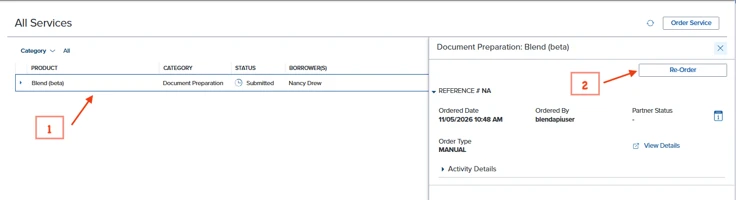
Under All Services, select the Blend row (1) under Document Preparation, then click Re-Order (2).
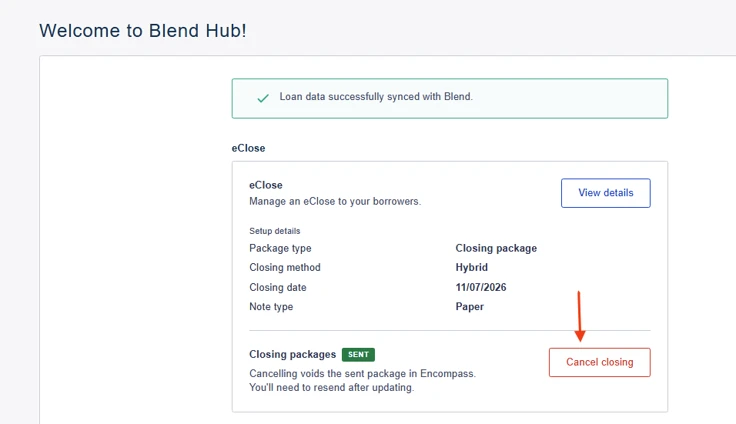
On the Blend Hub screen, click Cancel Closing.
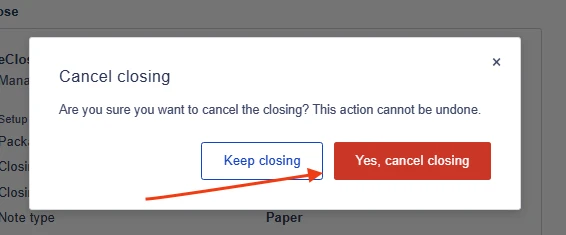
When the prompt appears, click Yes, cancel closing.
Part 2: Update the closing preferences
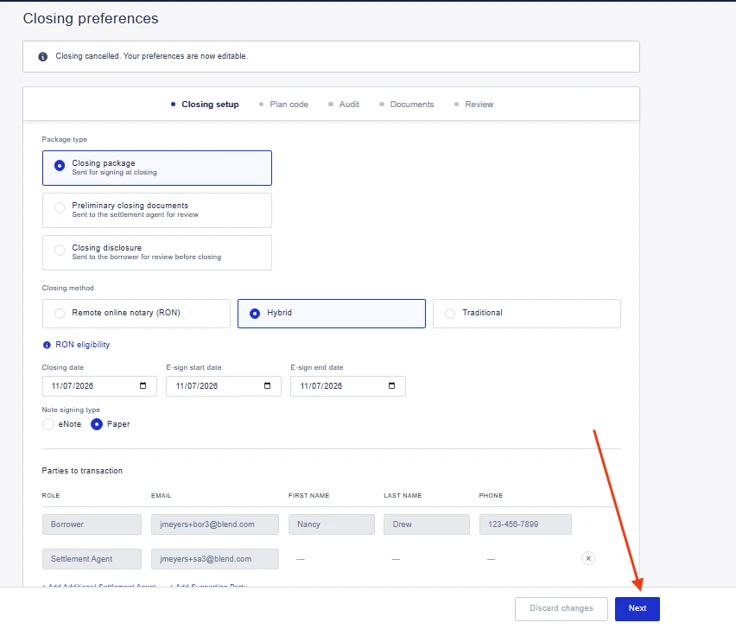
On the Closing preferences screen, update what changed:
Closing type: Traditional, Hybrid, or RON
Note type: eNote or Paper Note
Closing date
eSign window (Hybrid and RON)
Settlement agent details, including any special instructions
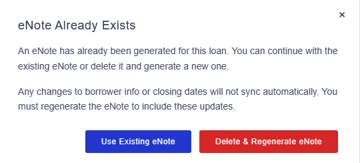
If you chose eNote, one is generated automatically. If a previous eNote exists, choose one option:
Generate a new eNote. Required if the closing or borrower information changed.
Use the previous copy. Only if the closing date, closing information, and borrower information all stayed the same.
Click Next.
Part 3: Regenerate, review, and send
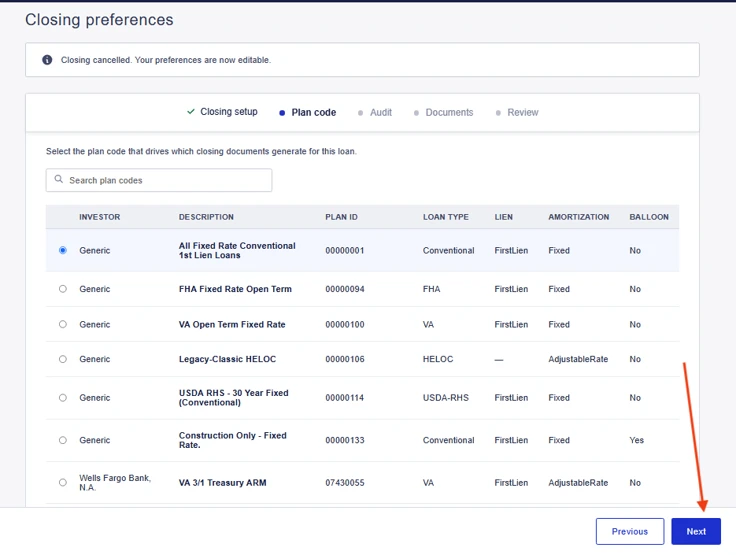
Confirm the Plan code (change it if needed), then click Next. **Please note that the plan code step is optional and will not appear if it's already been selected.***
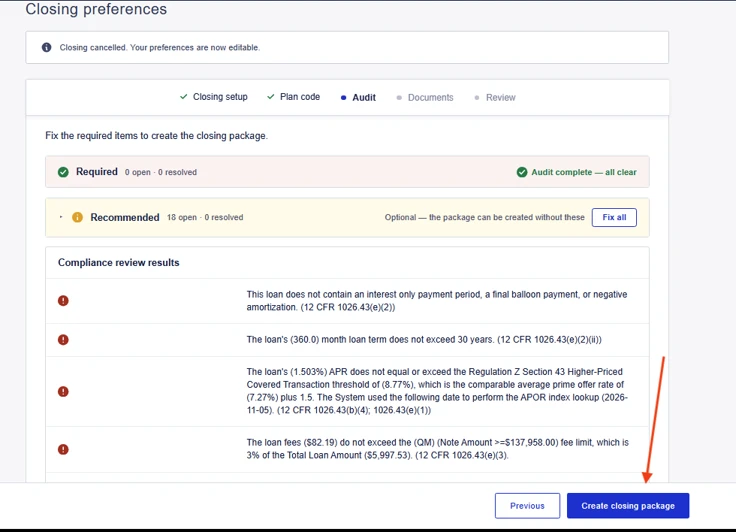
On the Audit step, resolve all required issues, then click Create closing package.
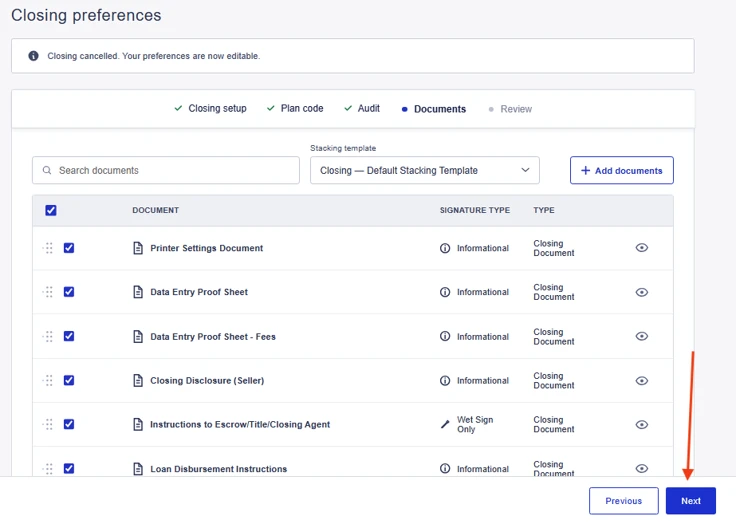
On the Documents step, confirm the correct documents were generated, then click Next.
Review the final package details, then click Send for signing.
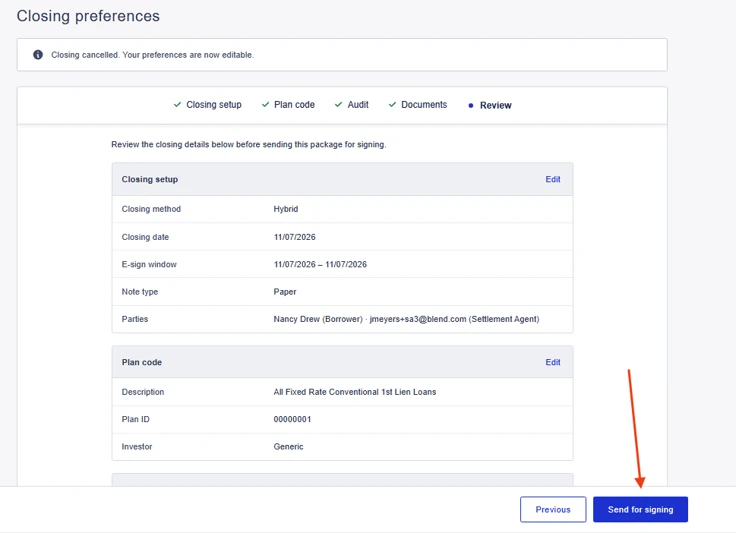
Wait for the submission to finish and confirm the package was accepted.
Verify the updated package appears correctly in downstream processing.
What to check after you resend
Troubleshooting
The package does not reopen correctly
Confirm you opened the existing Blend service from Services > All Services
Confirm the loan was previously pushed to Blend
Look for confirmation that the order or update was acknowledged
Fields stay locked or the closing is not editable
The package may not have returned to an editable draft state. Contact Blend Close Support and they will help you complete the redraw.
The regenerated package still looks wrong
Recheck the closing type and document settings
Confirm all audit issues were resolved before you created the package
You need more help
Contact Blend Close Support at support@blendclose.com. Have the transaction or service request details from the order flow ready so they can investigate.
FAQs
Should I create a new eNote every time?
No. Create a new one if the closing or borrower information changed. Reuse the previous copy only if the closing date, closing information, and borrower information are all the same.
What if the audit step shows errors?
Resolve all required issues first. You can only click Create closing package after that.
What if I cannot complete the redraw in the EPC UI?
Contact Blend Close Support.
Was this article helpful?
That’s Great!
Thank you for your feedback
Sorry! We couldn't be helpful
Thank you for your feedback
Feedback sent
We appreciate your effort and will try to fix the article