This guide shows how to send a preliminary closing package to Blend from the Encompass (EPC) desktop version. You order the Blend service, push the loan, set up eClose, then work through the Closing preferences screens and send the package for signing.
Stage 1: Order the service in Encompass
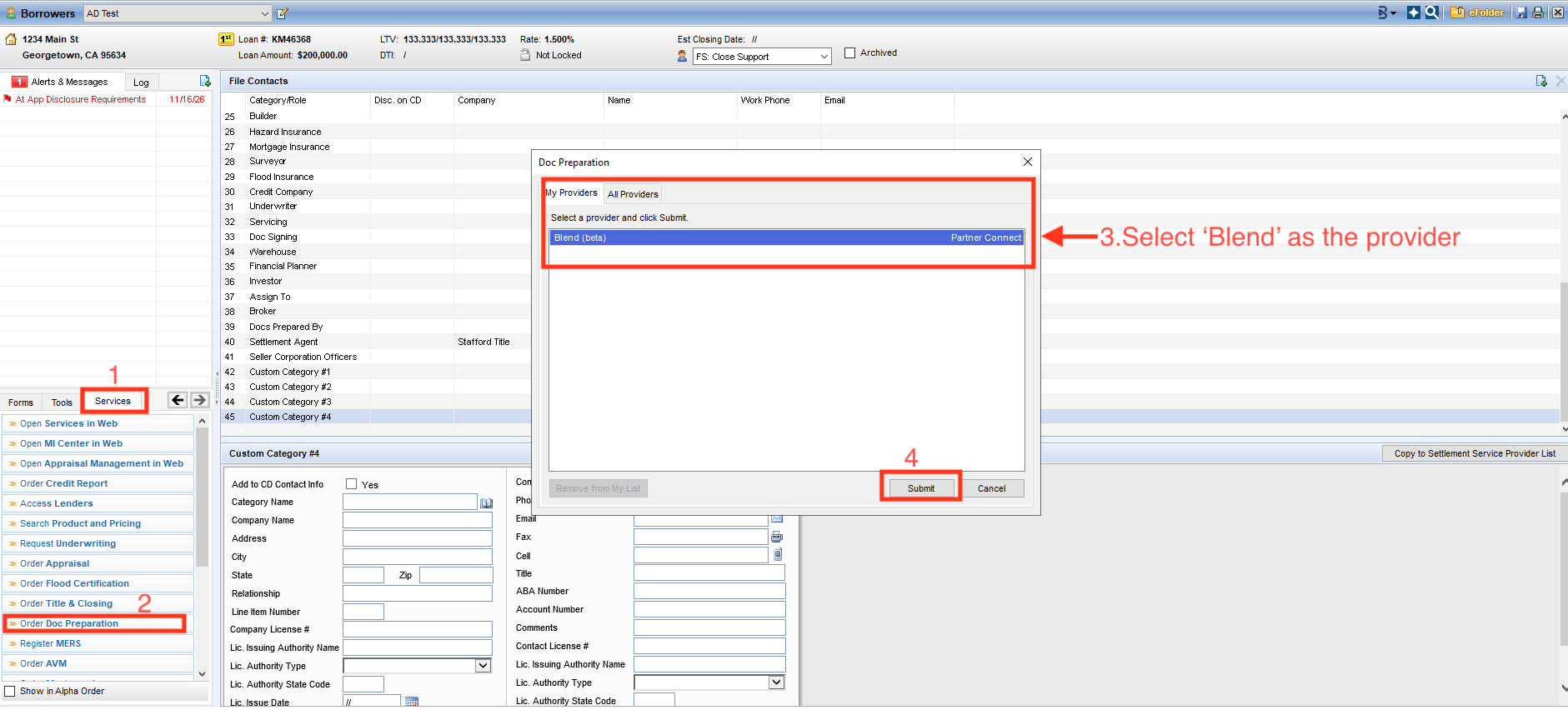
Open the loan's Services page and order the Blend document preparation service.
Open the loan in Encompass desktop.
Click the Services tab in the left-hand panel.
Click Order Doc Preparation from the Services list. The Doc Preparation window opens.
On the My Providers tab, select Blend as the provider and click Submit.
Stage 2: Push the loan to Blend and set up eClose
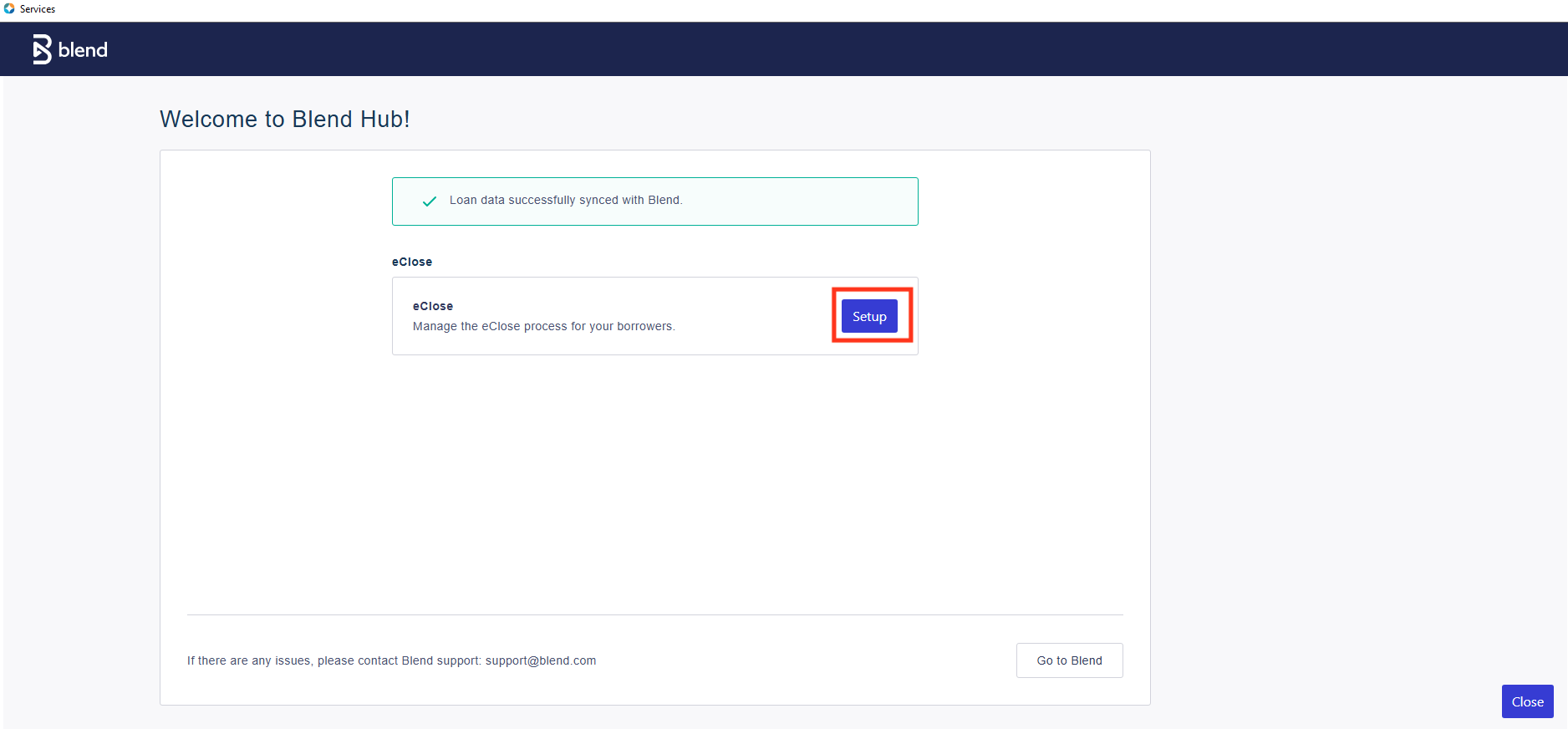
The Blend Hub opens next. Push the loan data across, then start the eClose setup.
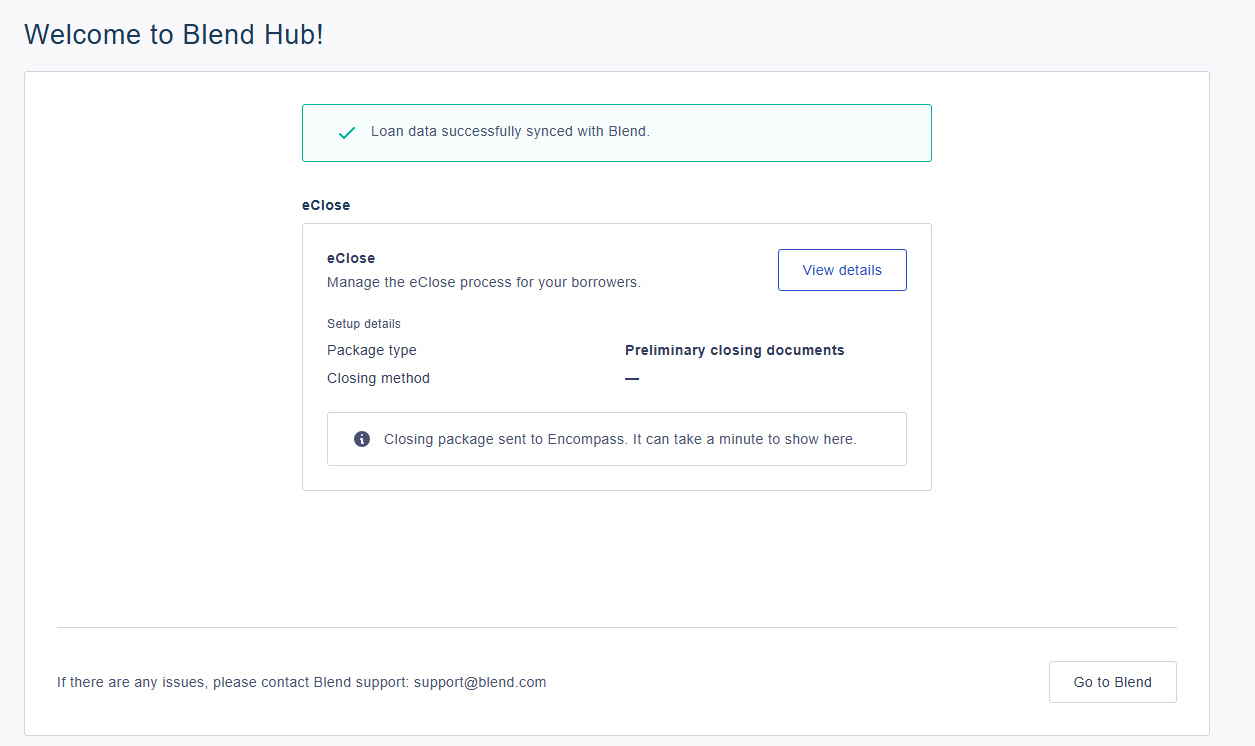
On the Welcome to Blend Hub screen, click Setup next to eClose to start the eClose setup. A green banner confirms "Loan data successfully synced with Blend" before you continue.
Stage 3: Complete Closing preferences and send for signing
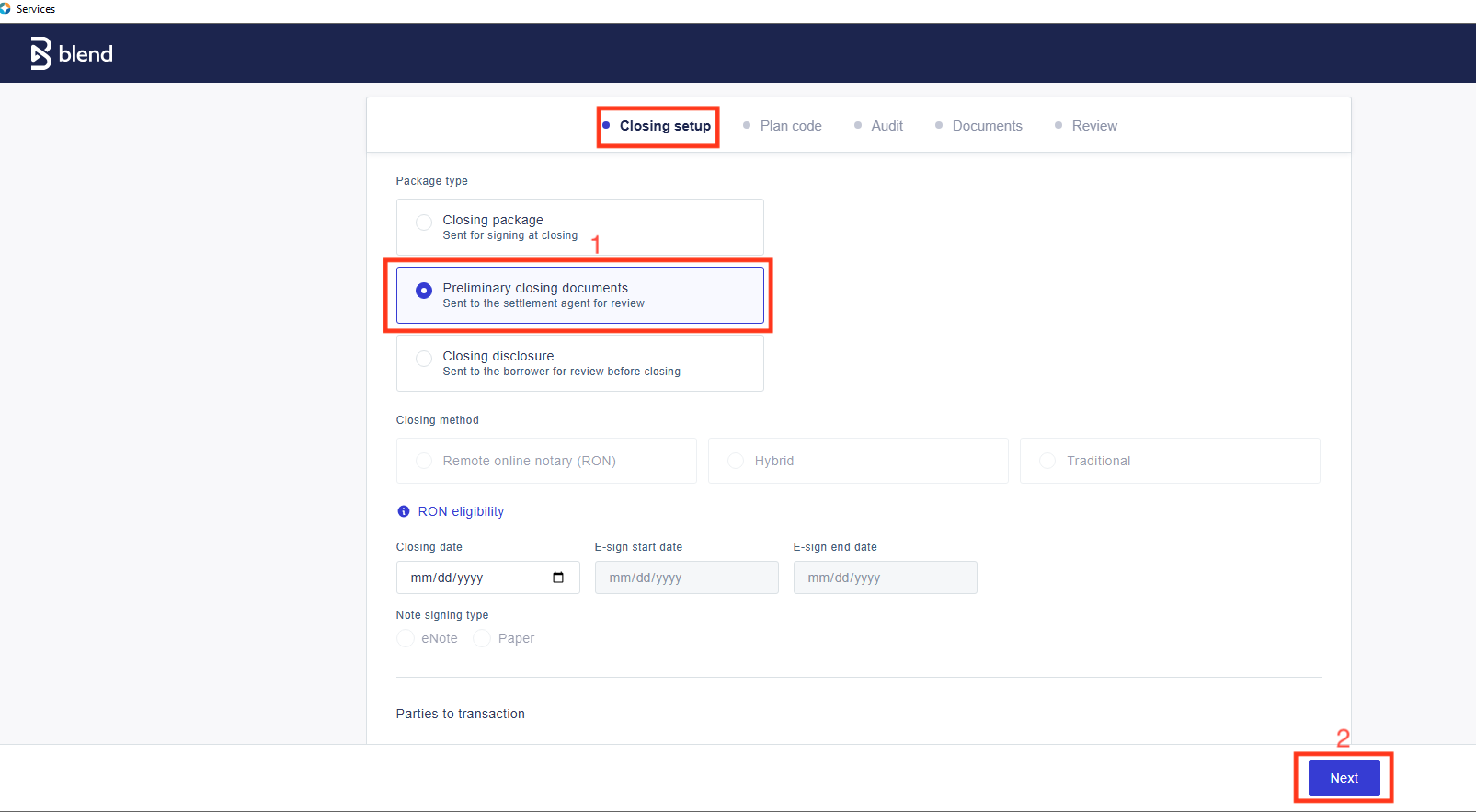
The Closing preferences screen has five steps along the top: Closing setup, Plan code, Audit, Documents, and Review. Work through them in order.
Closing setup: under Package type, select Preliminary closing documents (sent to the settlement agent for review), then click Next.
Note: Closing method, Closing date, and the other fields on this screen are not needed to send a preliminary closing package.
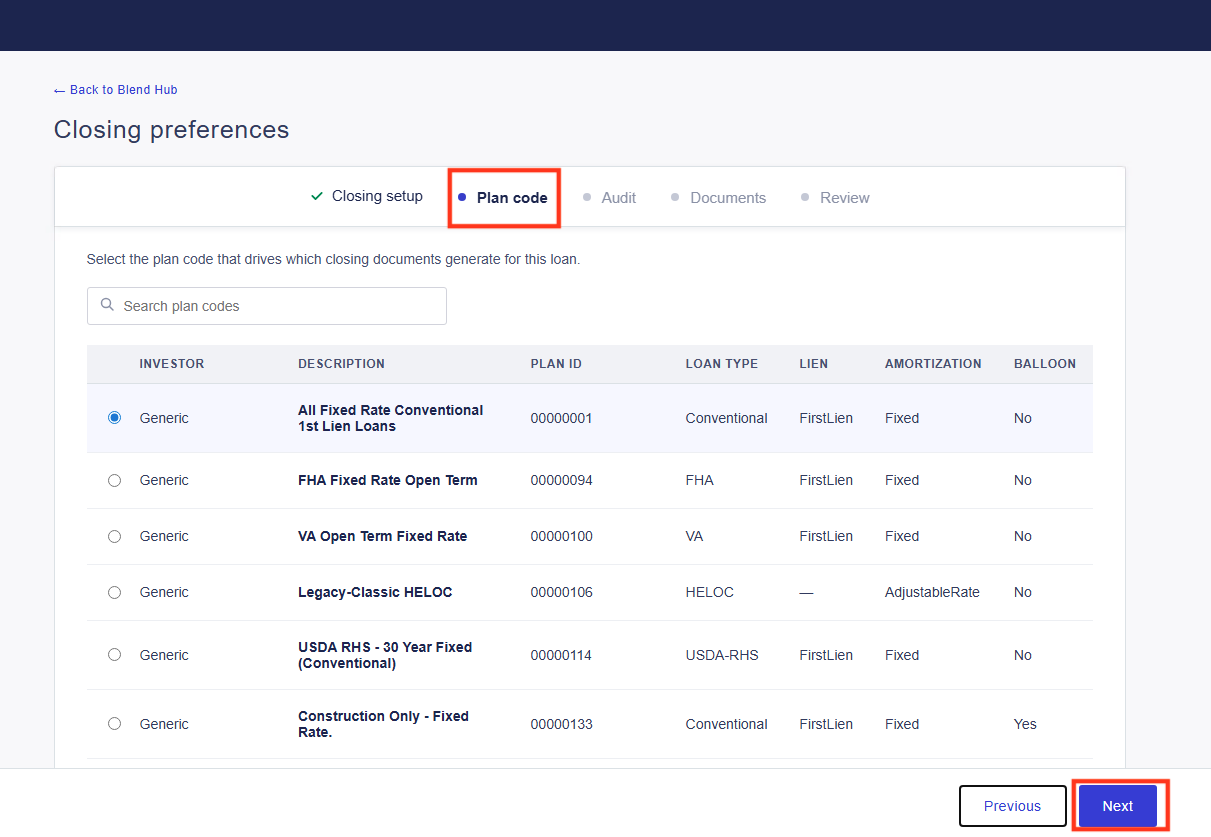
Plan code: select the plan code that drives which closing documents generate for this loan, then click Next.
Note: this step is optional. It does not appear if a plan code is already selected.
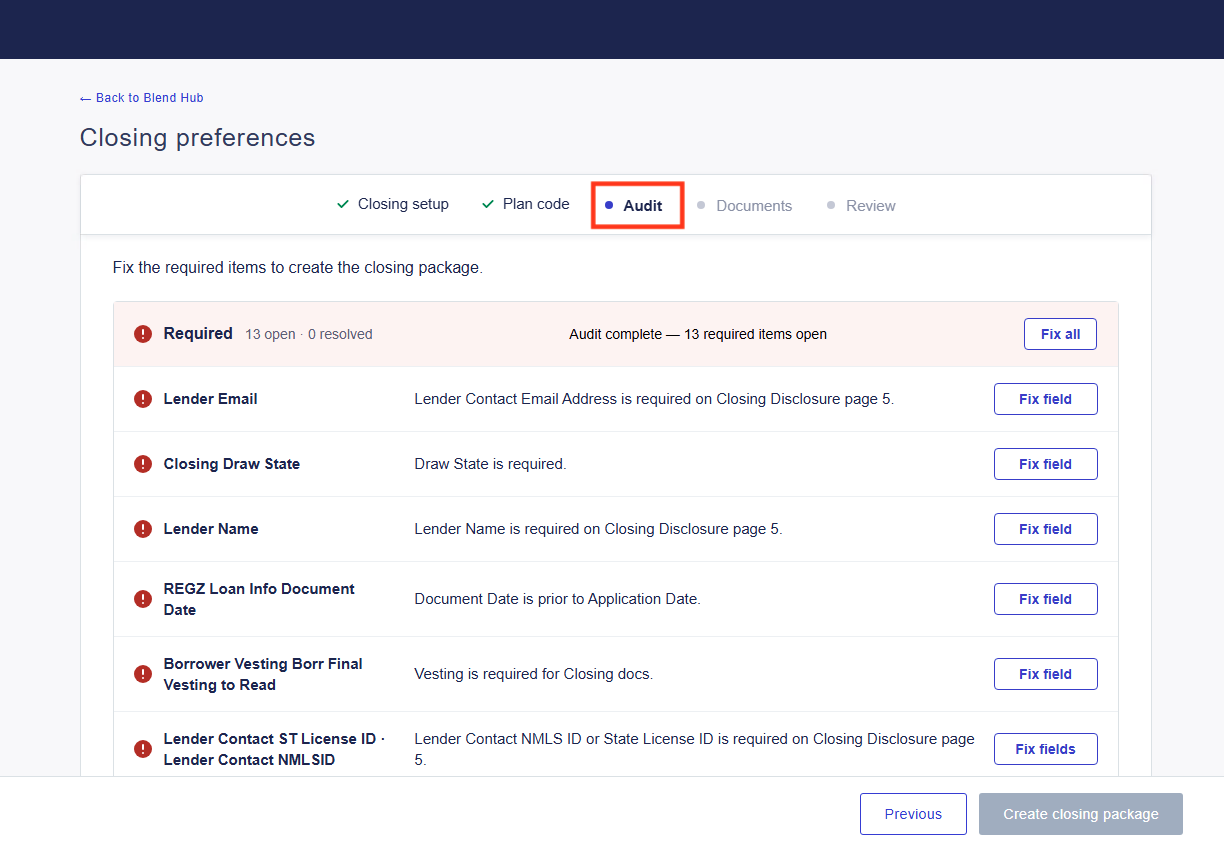
Audit: the required items must be resolved before the package can be created.
Click Fix all if required, or use Fix field on each item.
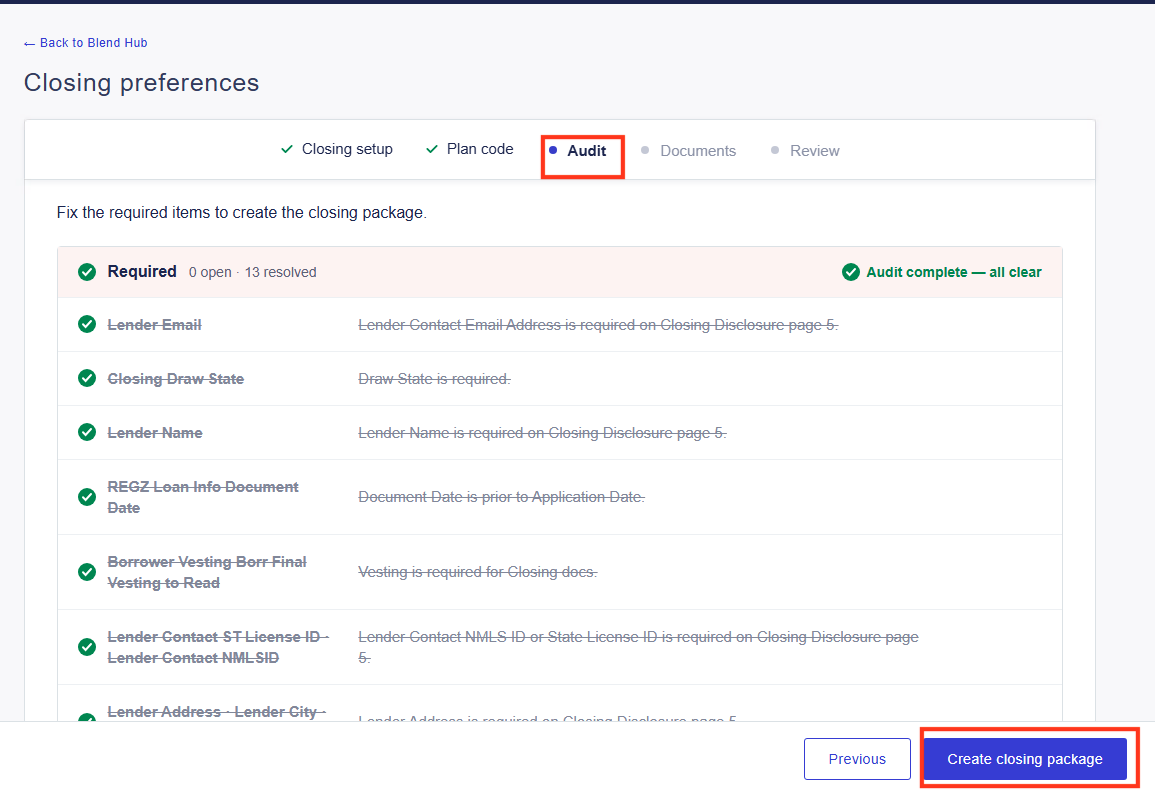
When the banner reads "Audit complete, all clear", click Create closing package.
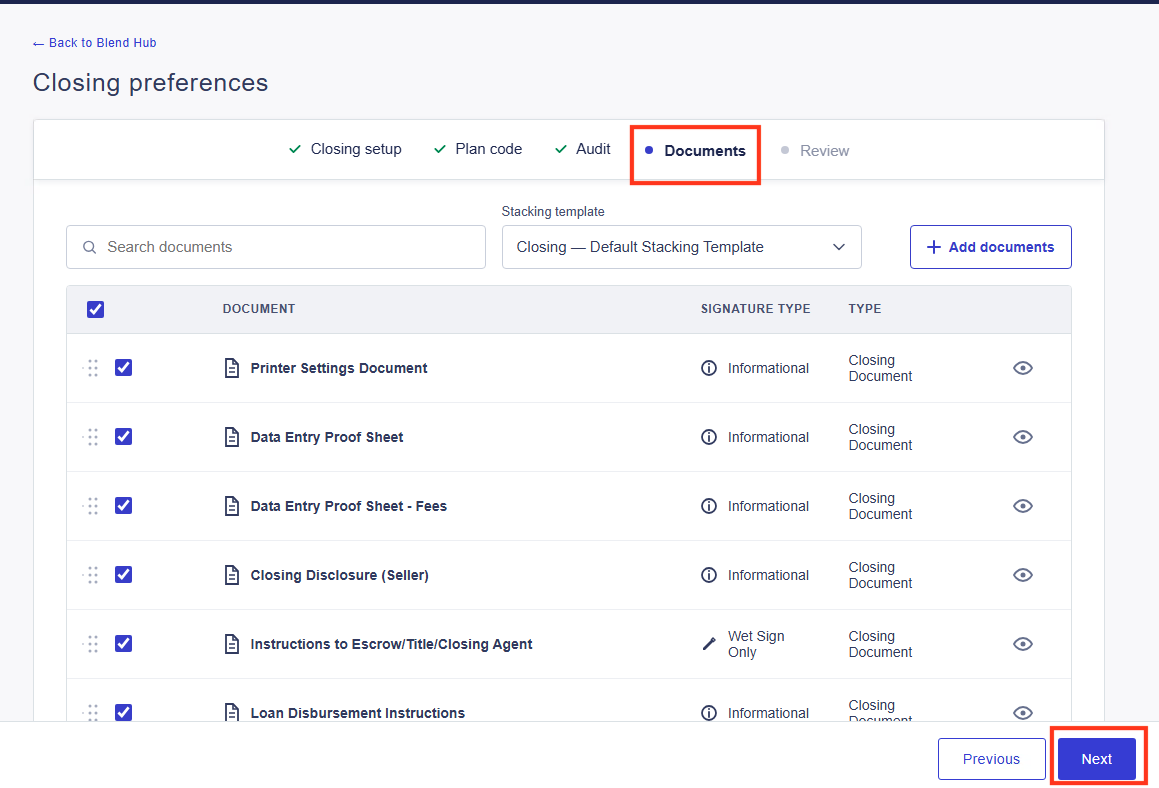
Documents: review the documents generated, then click Next.
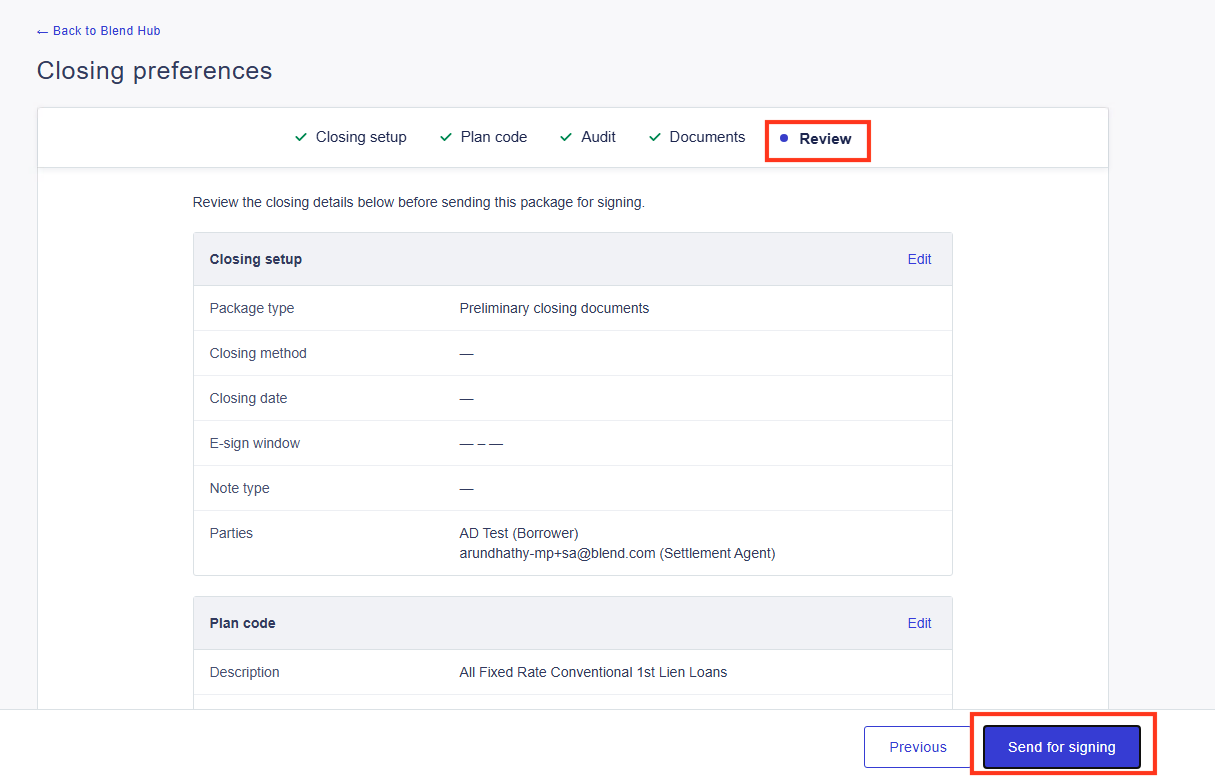
Review: check all the information, then click Send for signing.
What you'll see next: you are taken back to the Blend Hub, which shows "Loan data successfully synced with Blend" and an eClose card with the package type "Preliminary closing documents". The message "Closing package sent to Encompass. It can take a minute to show here." confirms the package was sent.
Please do note hesitate to reach out to Blend Close Support if you have any questions or run into issues when sending a preliminary closing package via EPC at support@blendclose.com.
Was this article helpful?
That’s Great!
Thank you for your feedback
Sorry! We couldn't be helpful
Thank you for your feedback
Feedback sent
We appreciate your effort and will try to fix the article