This guide shows how to add a Non-Borrowing Owner (NBO) or TPR to a loan file in the Encompass (EPC) desktop version, and how to change their name or email afterwards. It is for anyone preparing a file for closing who needs the NBO/TPR on the closing package.
⚠️ Note: We recommend always using a unique email address for the TPR/NBO when adding the individual to the closing. This resolves a lot of confusion about the emailed tasks sent to complete closing types such as Hybrids.
In this guide
- Add an NBO/TPR to the closing
- Change an NBO/TPR's information
Add an NBO/TPR to the closing
- Open the loan in Encompass desktop.
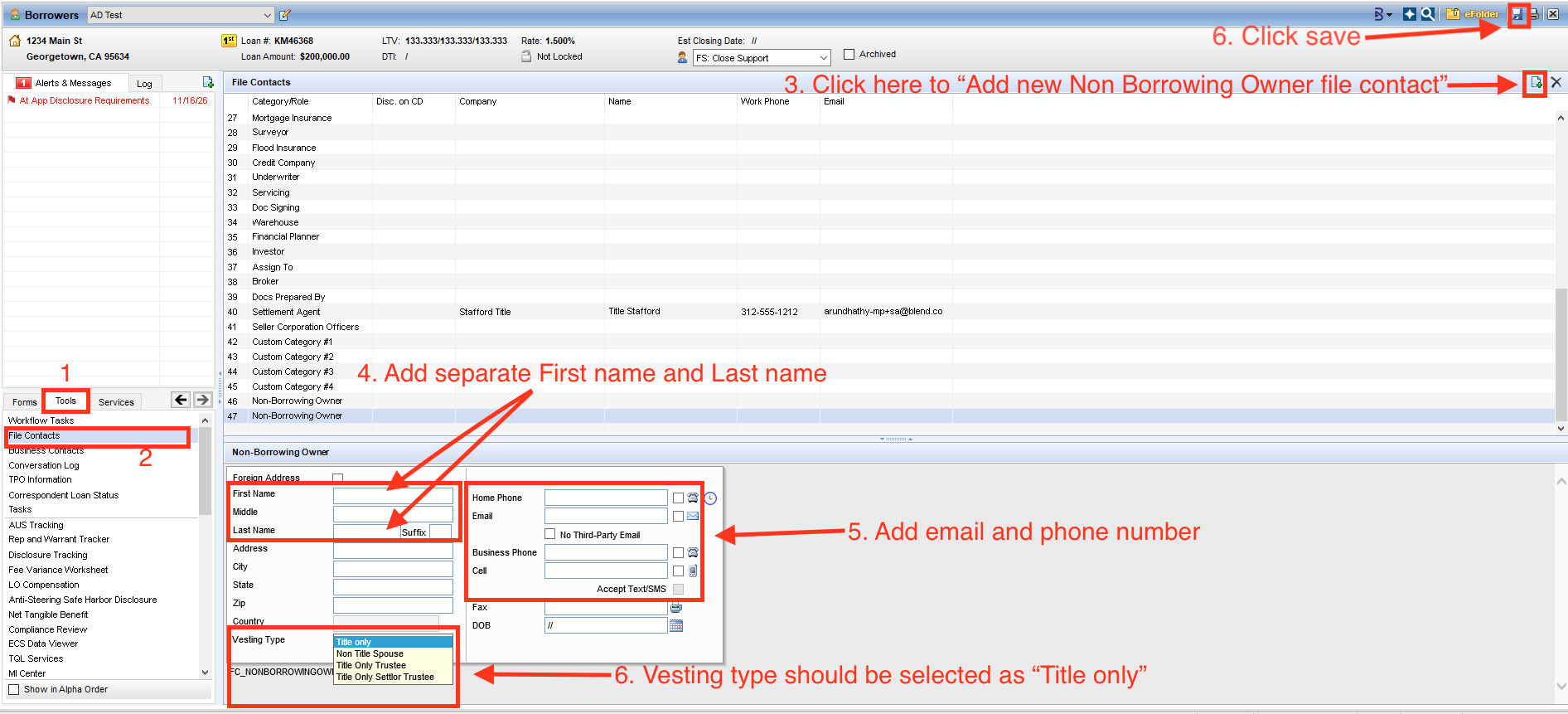
- Click the Tools tab in the left-hand panel.
- Click File Contacts from the Tools list.
- Click the "Add new Non Borrowing Owner file contact" icon at the top right corner of the File Contacts screen. A Non-Borrowing Owner section opens at the bottom of the screen.
- Enter the NBO's first name and last name.
- Note: enter the first and last name in their own separate boxes. Do not put both in one field.
- Enter the NBO's email address and phone number.
- Set Vesting Type to "Title only" from the dropdown.
- Click Save at the top right corner of the screen.
Change an NBO/TPR's information
To change an NBO/TPR's name or email, delete the contact and add it back with the corrected details.
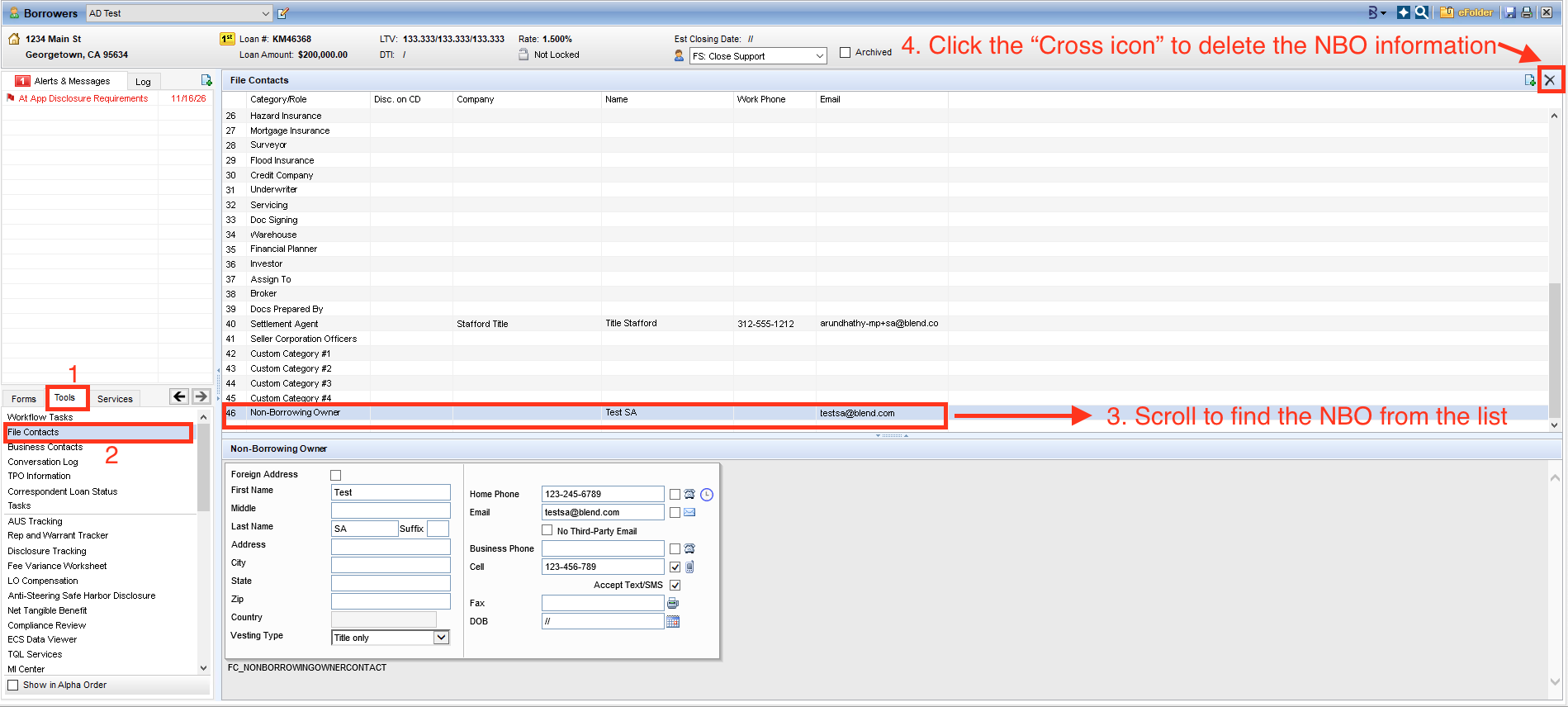
- Click the Tools tab in the left-hand panel.
- Click File Contacts and scroll down to find the NBO/TPR in the list.
- Delete the contact using the cross (X) icon at the top right corner of the screen.
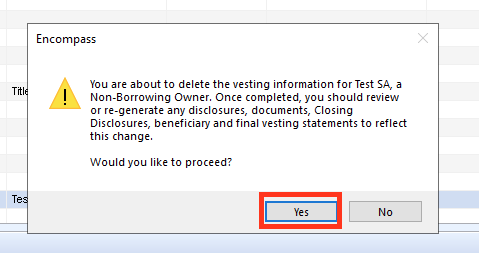
- Click Yes in the confirmation pop-up that appears.
- Note: the pop-up warns that after deleting, you should review or regenerate any disclosures, documents, Closing Disclosures, beneficiary and final vesting statements.
- Add the TPR/NBO back in File Contacts with the corrected details. Follow steps 4 to 8 in section 1.
- Regenerate the package.
- Resend the package to Blend.
Please do note hesitate to reach out to Blend Close Support if you have any questions or run into issues when adding/editing a Non-Borrower Singer at support@blendclose.com.
Was this article helpful?
That’s Great!
Thank you for your feedback
Sorry! We couldn't be helpful
Thank you for your feedback
Feedback sent
We appreciate your effort and will try to fix the article