This guide will help you to start a full closing package from Encompass Desktop, select the package type in EPC, and place the order when direct in-EPC ordering is enabled.
Before you begin
Confirm the loan is ready for closing and that you are in the correct Encompass instance.
Verify the closing date, closing method, borrower and other signing parties, and settlement-agent details.
Use the lender-approved plan code for the full closing package. Do not use a test or unapproved code for a live loan.
Confirm whether direct in-EPC ordering is enabled for the lender. If not, use the PDD/e-folder order path below.
Desktop workflow
1. Open EPC from Encompass Desktop
Open the loan in Encompass Desktop.
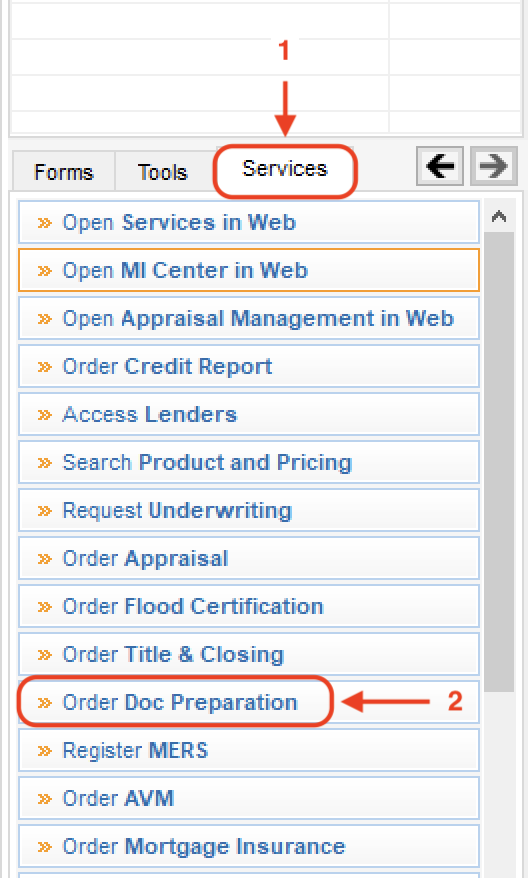
Go to Services → Order Doc Preparation.
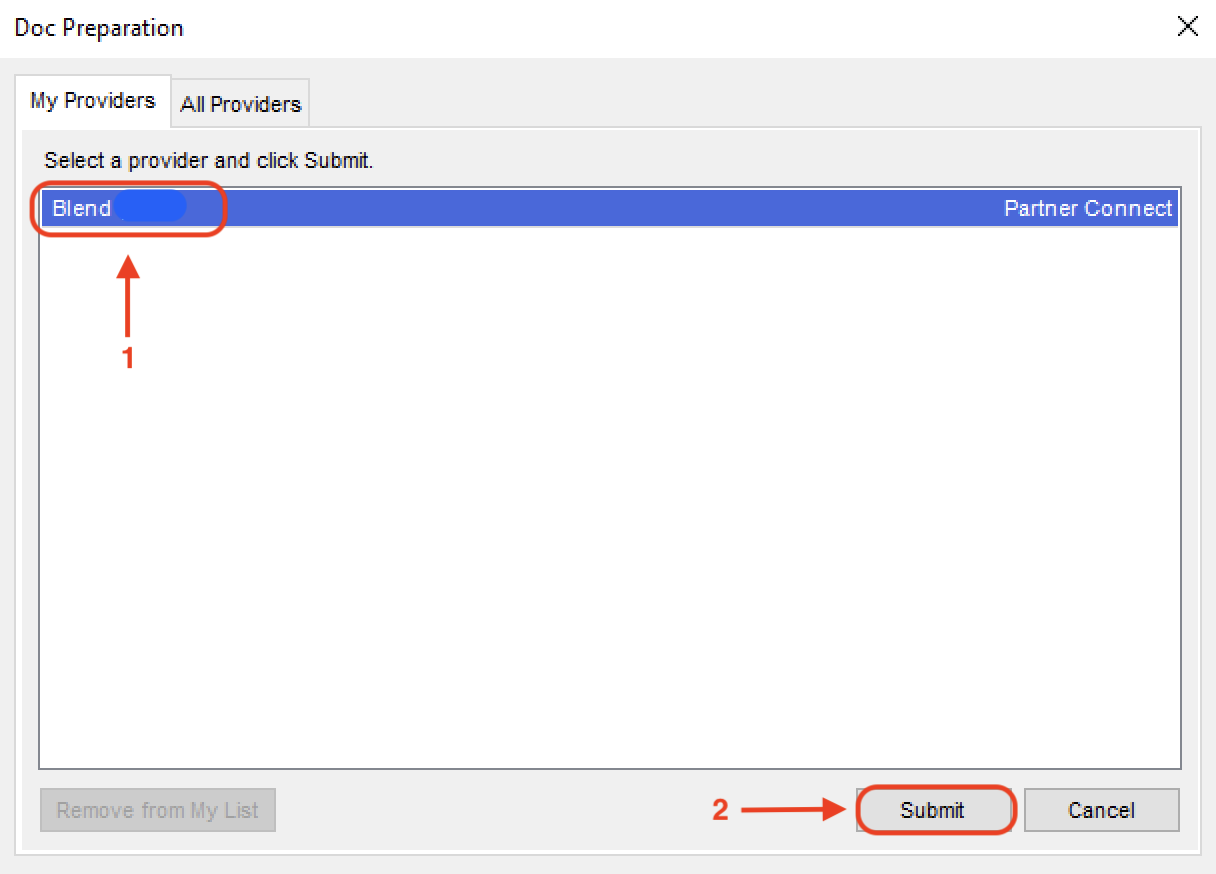
3. Select Document Preparation – Blend, then select Submit.
4. Wait for the loan data to sync and once the closing has been sent to EPC you will be redirected to Blend Hub!. Select “Setup" to open the Blend/EPC workflow.
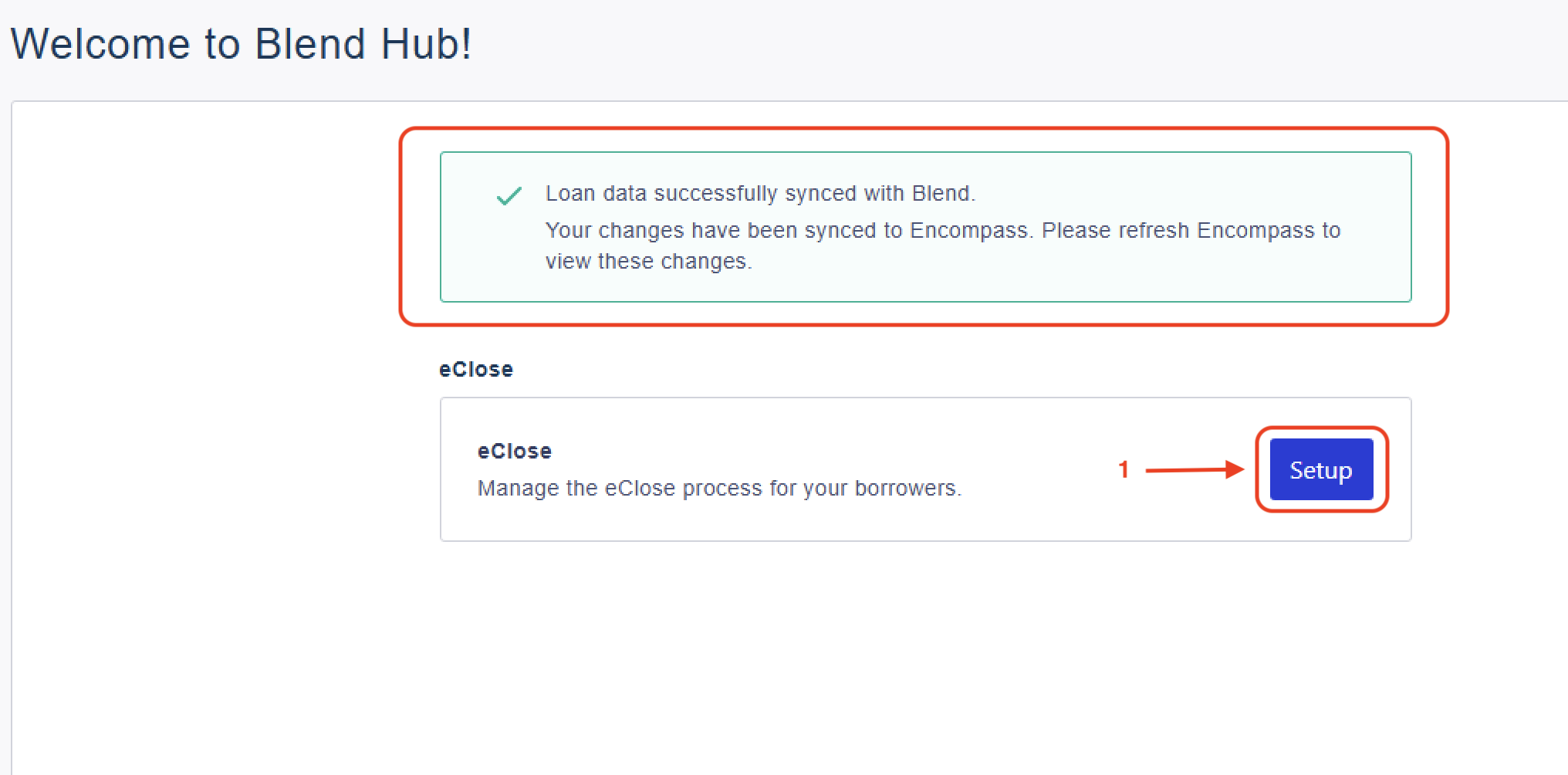
The desktop path starts through Document Preparation and Blend; after synchronization, the workflow is similar to the web flow.
2. Set up the full closing package
In EPC, choose Closing Package as the package type. Confirm the closing date, method, and parties. Now, complete the required Settlement Agent fields, then continue to click “Next”.
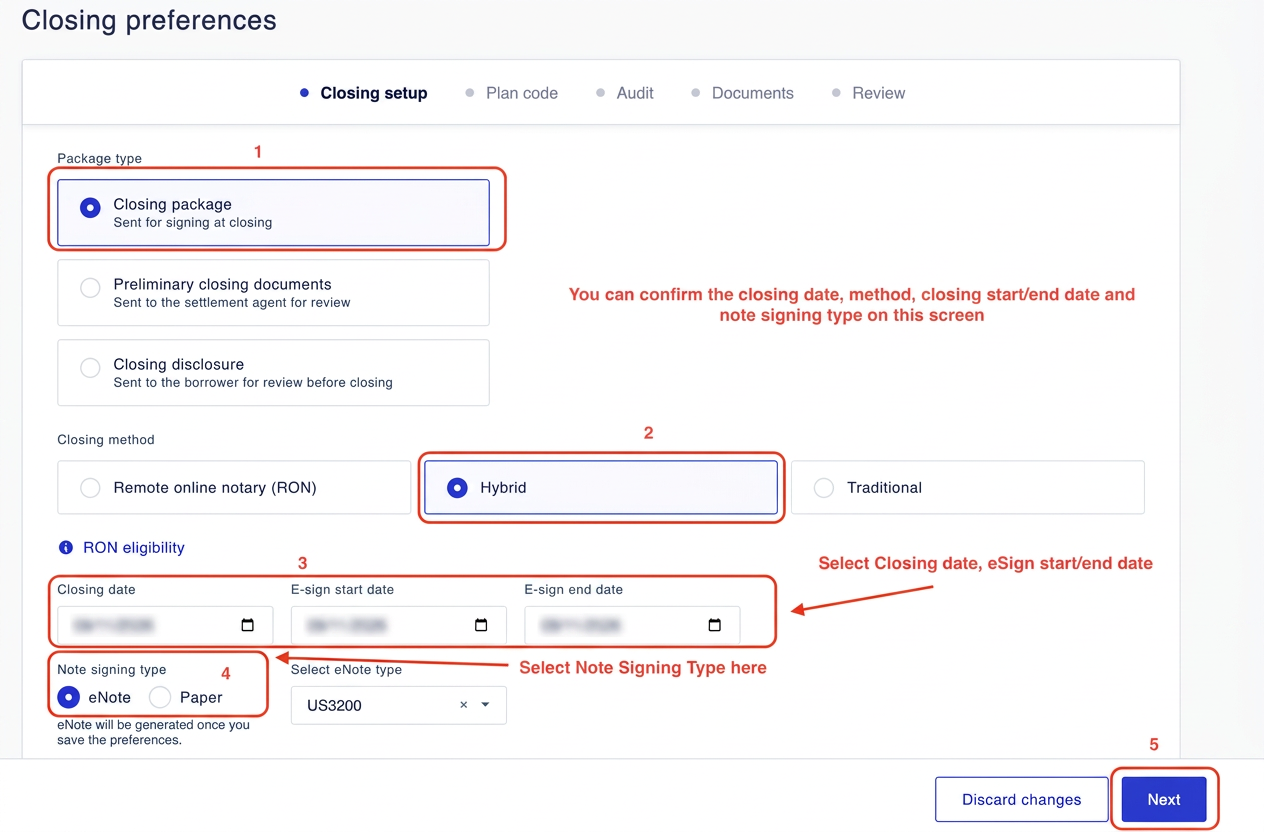
(Note: For the Closing disclosure package type, Closing method (RON, Hybrid, Traditional), the e-sign dates and Note signing type are greyed out and do not apply.)
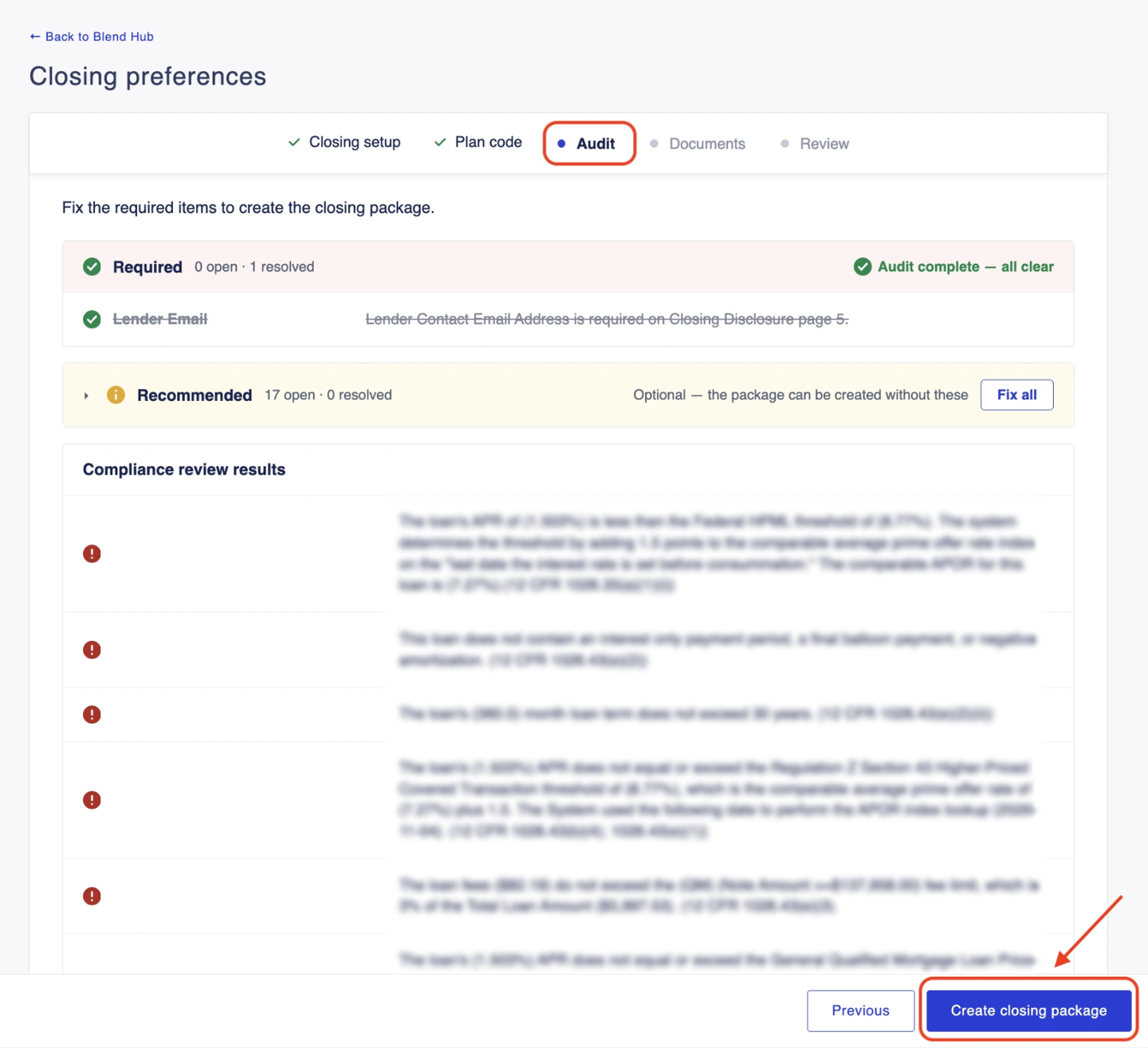
3. Complete the audit
The EPC audit verifies that the loan and closing setup have the required information before a closing package is created. Resolve and save all blocking items first; proceed only when the audit is clear, and don’t bypass unresolved checks.
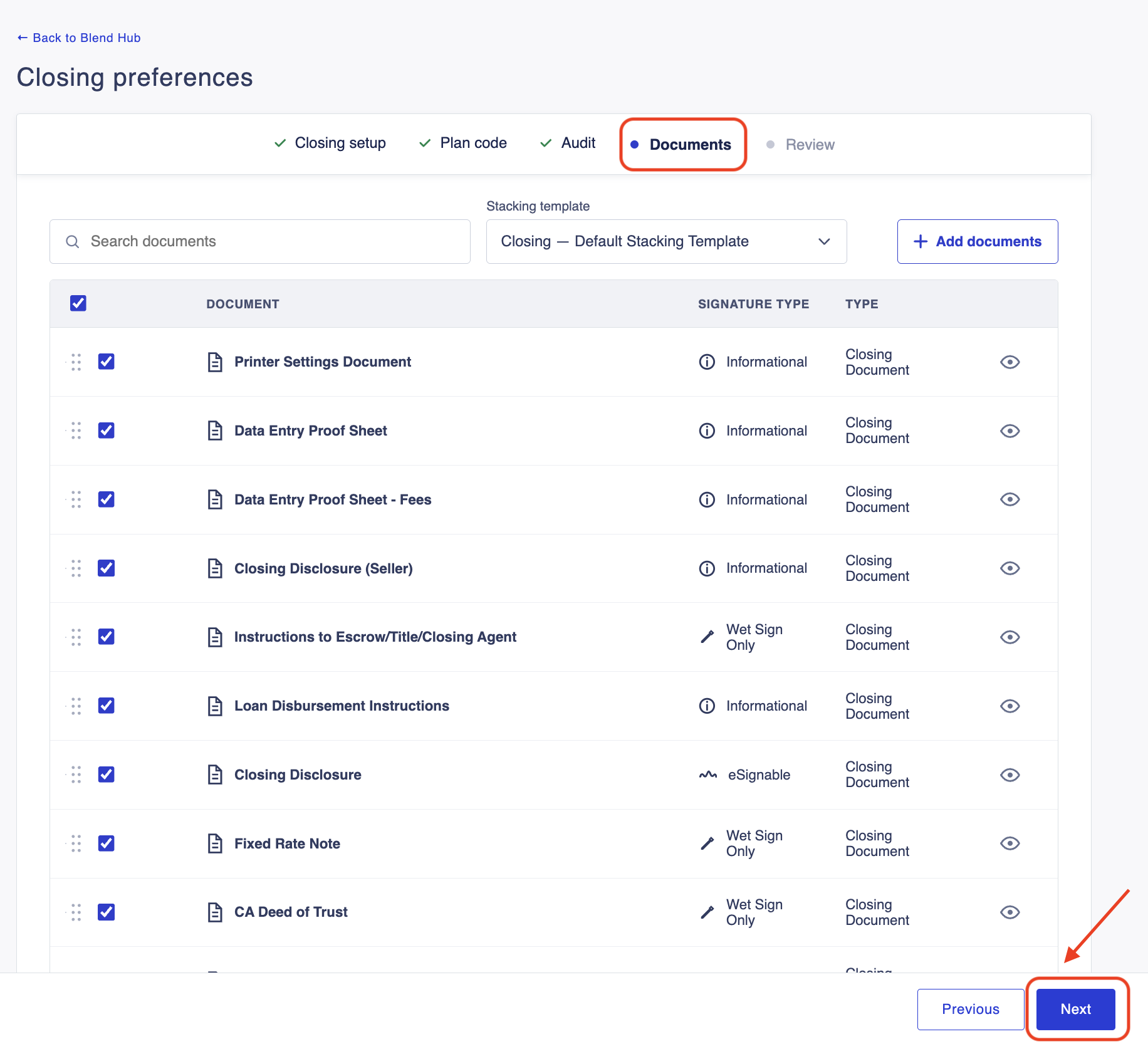
4. Review documents and signers
This final review confirms the package contains the intended documents, each routed for the correct signature, and includes the right recipients and closing details before you place the order.
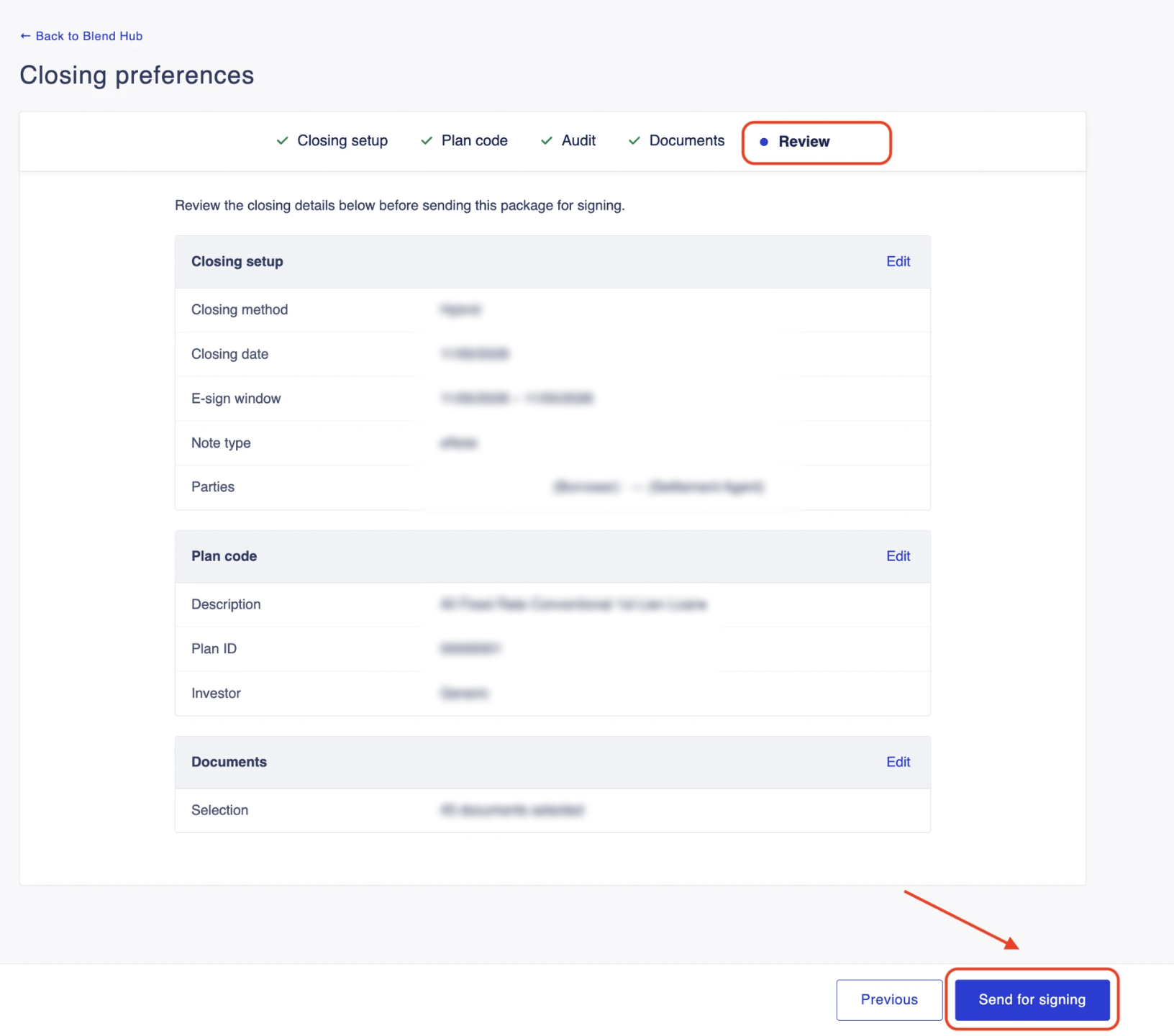
5. Send and verify delivery
These steps submit the full closing package and verify it reaches the expected Blend workflow. If delivery is unclear, gather the transaction details and investigate before retrying to avoid duplicate submissions.
Was this article helpful?
That’s Great!
Thank you for your feedback
Sorry! We couldn't be helpful
Thank you for your feedback
Feedback sent
We appreciate your effort and will try to fix the article