After a borrower signs or a settlement agent uploads signed copies, completed closing documents are available in your Encompass eFolder and on the loan's Blend Application page.
Where to find the documents
Signed documents can be reviewed in three places. Encompass is the primary repository for your lender copy.
Location | What you can find there | When to check |
|---|---|---|
Encompass loan → eFolder | Returned closing documents and other loan documents. Check Unassigned Files first, then the expected mapped folder(s). | This is the primary place to review your LOS copies after signing or upload. |
Blend Application page for the loan | Signed closing documents available for the loan. Open the loan record using the loan number or the link in the notification, then review its available documents. | Use it to confirm documents are available in Blend, or when you are following up on a notification. |
Settlement Agent Workspace (SAW) | Documents available to the settlement agent, including the lender-provided package and, after signing, downloadable signed or RON documents as applicable. | Check it to confirm the settlement agent's upload or access. It is not the lender's only copy. |
Good to Know: Once the settlement agent uploads an ink-signed closing package, the closer can view the signed documents in the LOS or the Blend Application page. For a completed RON signing, signed documents are likewise available in the LOS or Blend Application page, and the settlement agent can access them in SAW
How the return flow differs by signing method
eSign-ahead / Hybrid: Borrower-signed copies are available in the LOS, but closing may not be complete until the settlement agent finishes ink signing and uploads the package to SAW.
Traditional / Wet-sign: The settlement agent uploads the scanned, signed package to SAW after signing. The lender is notified, and copies are available in the LOS and Blend Application page.
RON: Executed documents are available in the LOS and Blend Application page after the notary session is successfully completed. eSign-ahead completion alone does not confirm RON completion.
Encompass eFolder: locating returned files
1. Open the loan in Encompass.
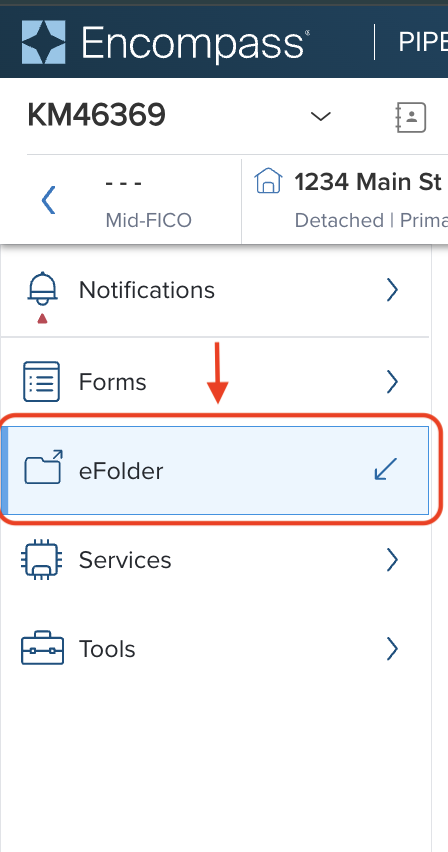
2. Open the loan’s eFolder.
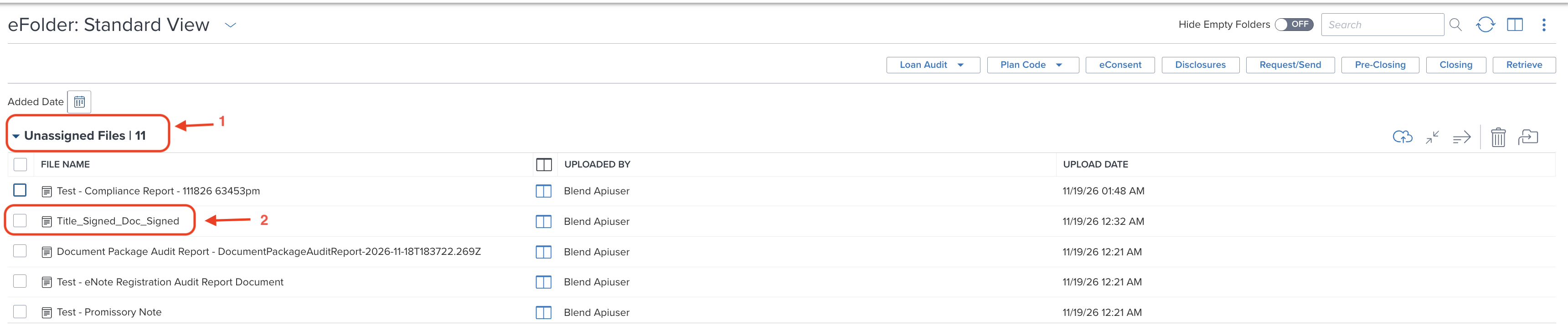
3. Check Unassigned Files for signed borrower documents that have returned from Blend. The uploaded signed copies by the title will be named as Title_Signed_Doc in the unassigned files.
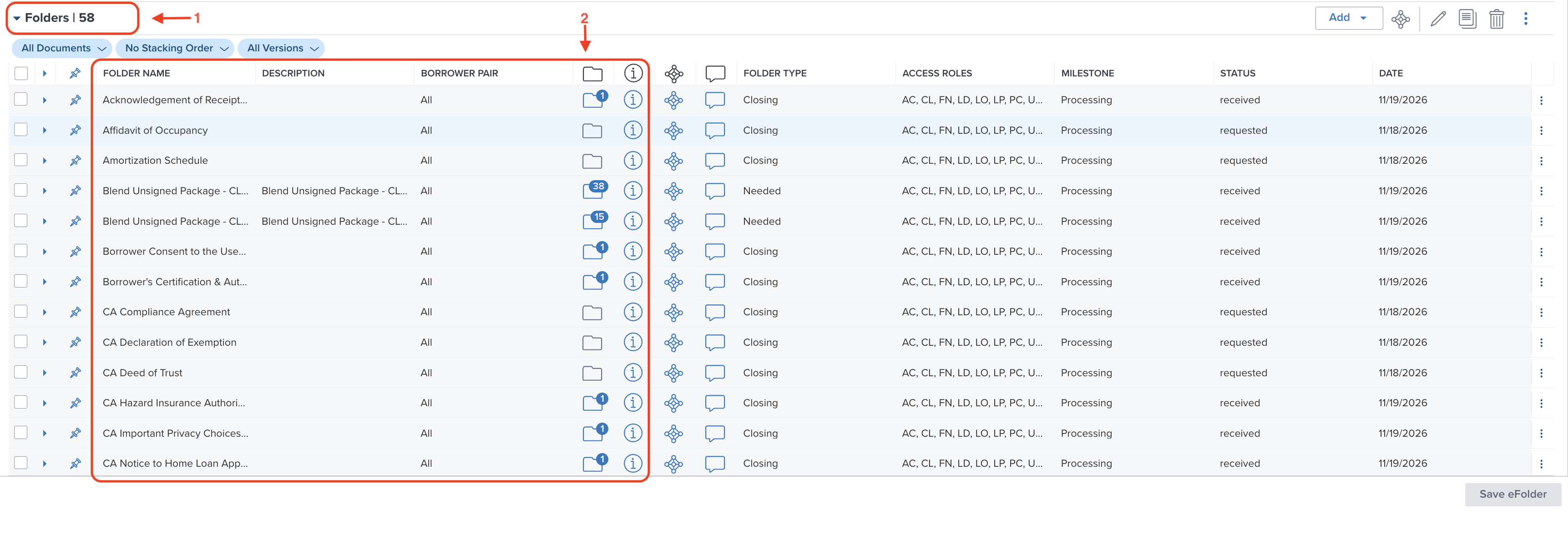
4. Check the Folders section for documents that have been routed and if you click on the folder icon you will be able to open the document to confirm its contents, signature status, and whether it is the executed copy you need.
Was this article helpful?
That’s Great!
Thank you for your feedback
Sorry! We couldn't be helpful
Thank you for your feedback
Feedback sent
We appreciate your effort and will try to fix the article